- DATE:
- AUTHOR:
- Ezzan
WebApp Version 26.9 Changelog
This update includes new features, essential performance improvements, and usability enhancements, ensuring your daily operations run smoothly. We've also addressed several bug fixes to enhance stability and reliability. Thank you for your continued trust and feedback, which help us deliver the best possible service.
New Feature:
[Product] Multi-Unit Product Terminology Redesign
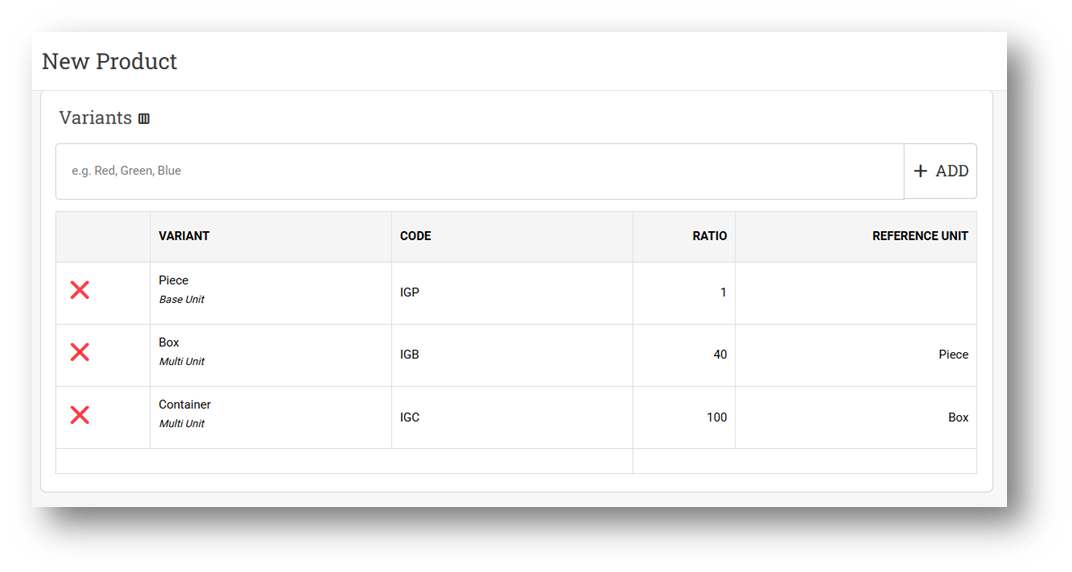
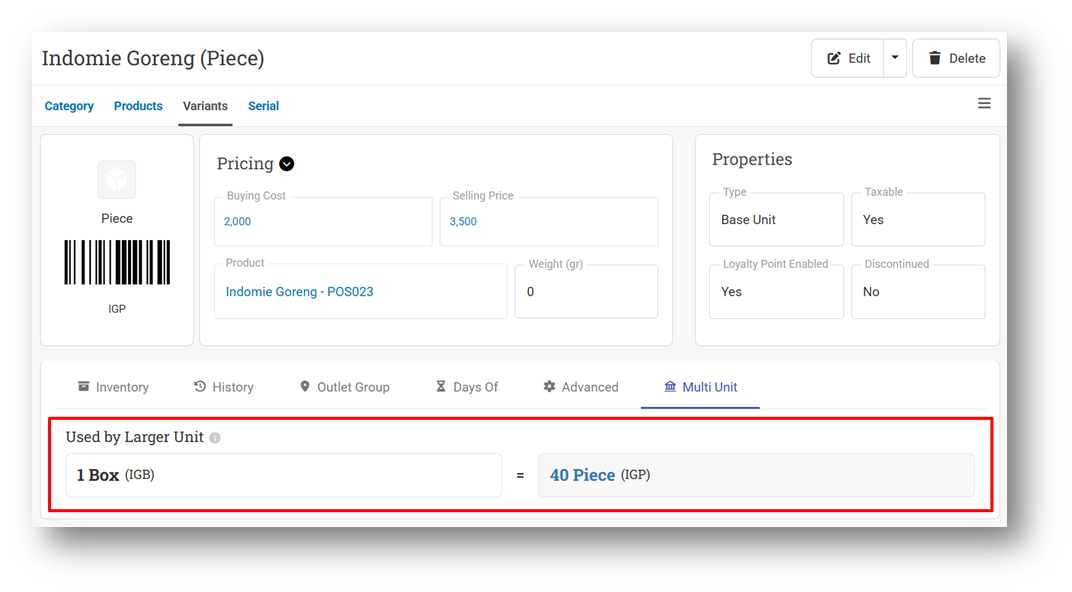
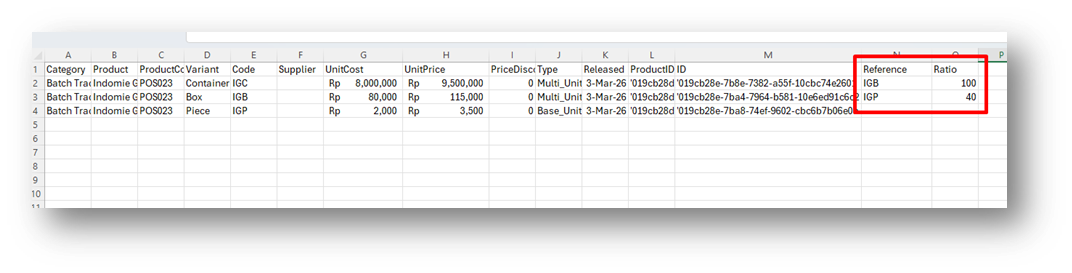
We’ve redesigned the terminology and structure of the Multiple UOM (Multi-Unit) product feature to make it clearer and more intuitive. Previously, when creating products such as Indomie with units like Piece and Box (for example, 1 Box = 40 Pieces), users had to configure the ratio and parent relationship at the smaller unit level. Now, the configuration has been simplified: users define the reference unit and ratio at the higher unit level (for example, Box references Piece with a defined ratio). This updated structure has been applied consistently across the Product UI, Import process, and Public API.
We have also introduced clearer terminology. The smallest unit is now officially called “Base Unit”, while units that reference another unit are called “Multi Unit.” Only one Multi Unit can reference each Base Unit, so the relationship is strictly one-to-one. This change improves data consistency and prevents complex unit hierarchies that could lead to confusion or stock miscalculations.
To ensure a smooth transition, we have automatically migrated existing customer data where possible. Migration covers previous Multiple UOM setups that contained only two units. Configurations with more than two units (for example, adding Container or Truck units) or cases where one parent was linked to multiple children are considered invalid (bad data) and are not covered by the migration script. These cases must be corrected manually, and we recommend using the Import feature to update data efficiently. Please note that the stock deduction logic remains unchanged, so operational behavior will continue to work as before.
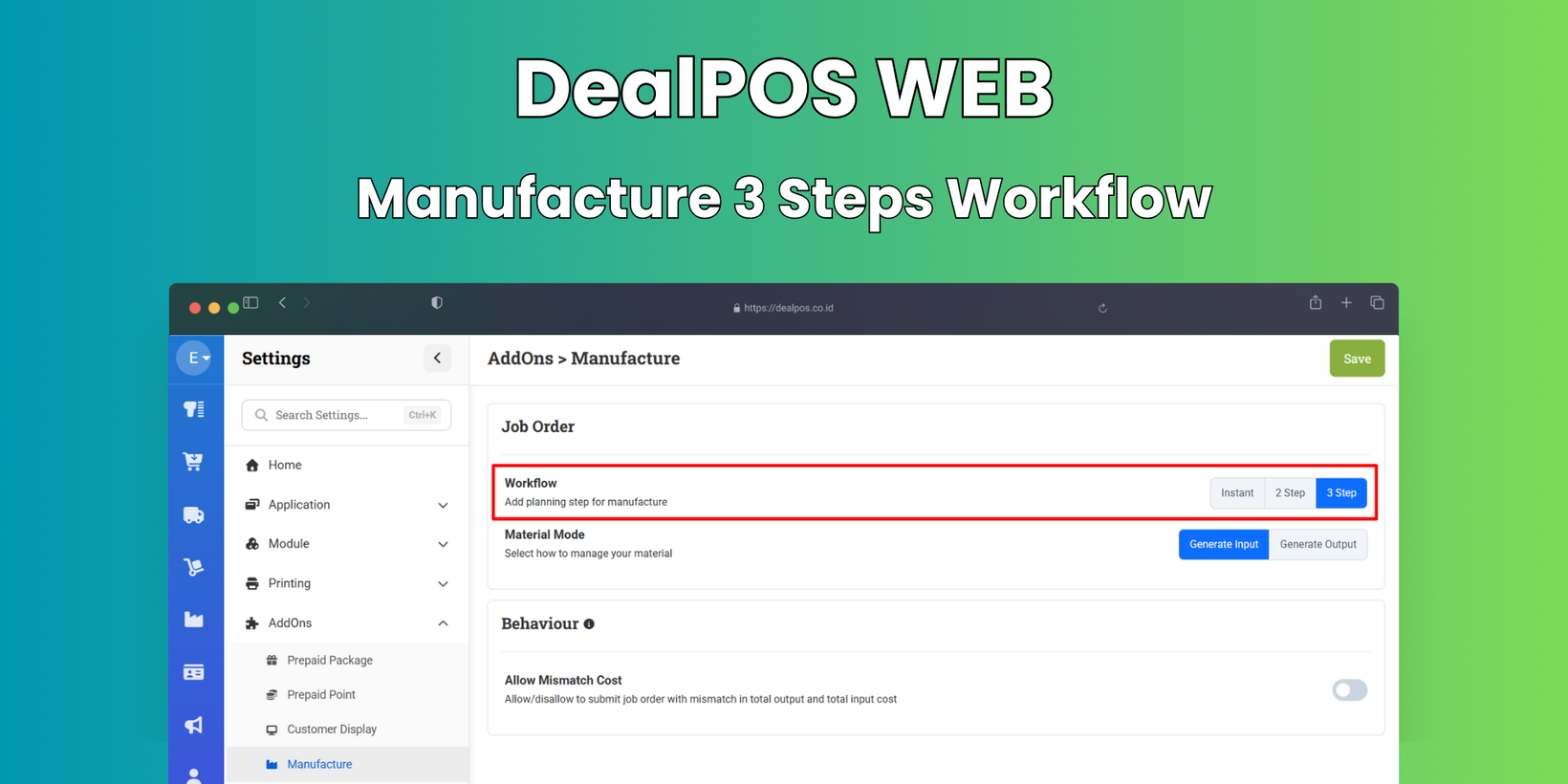
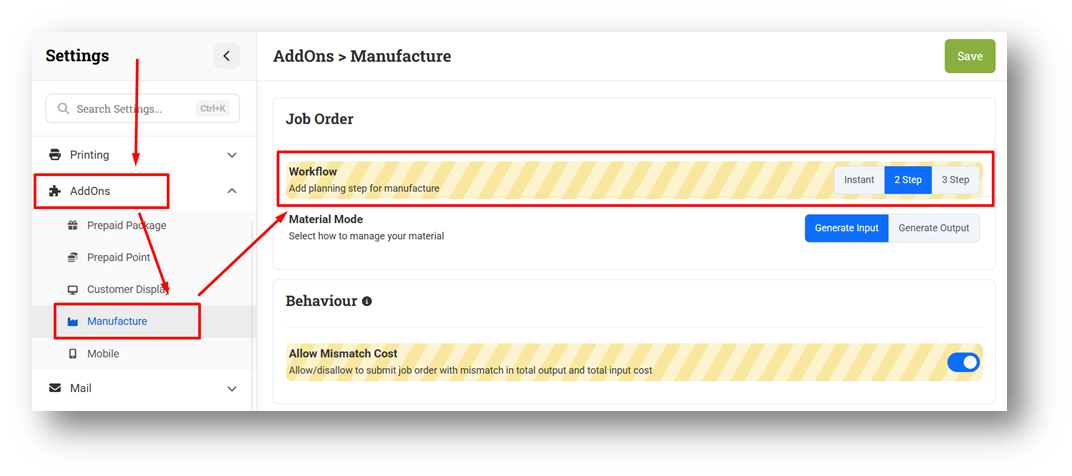
[Manufacture] Manufacture 3 Steps Workflow
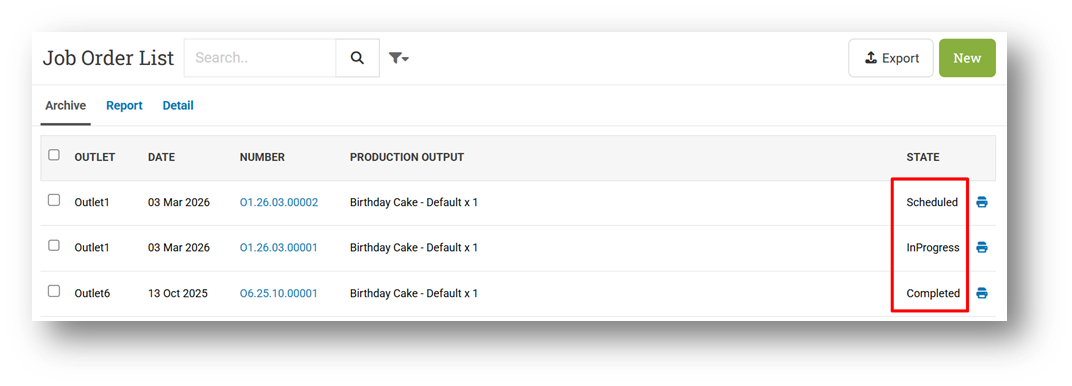
We’ve introduced a major update to the Manufacture workflow, providing more flexible process control. Users can now choose between Instant, 2-Step, or 3-Step workflows. The Instant option works the same as before—raw materials are deducted, and finished goods are added immediately when the manufacturing record is created.
For the 2-Step workflow, raw material stock is deducted when the manufacture record is created (status: In Progress), and finished goods stock is added only when the process is marked as Complete. For the 3-Step workflow, no stock movement occurs at creation (status: Scheduled), and editing is only allowed while the status remains Scheduled. Once the process moves to the next stage, stock changes begin following the same logic as the 2-Step workflow—raw materials are deducted during processing, and finished goods are added upon completion. This enhancement provides better visibility and control over production progress while keeping stock movement logic clear and structured.
Minor Improvements:
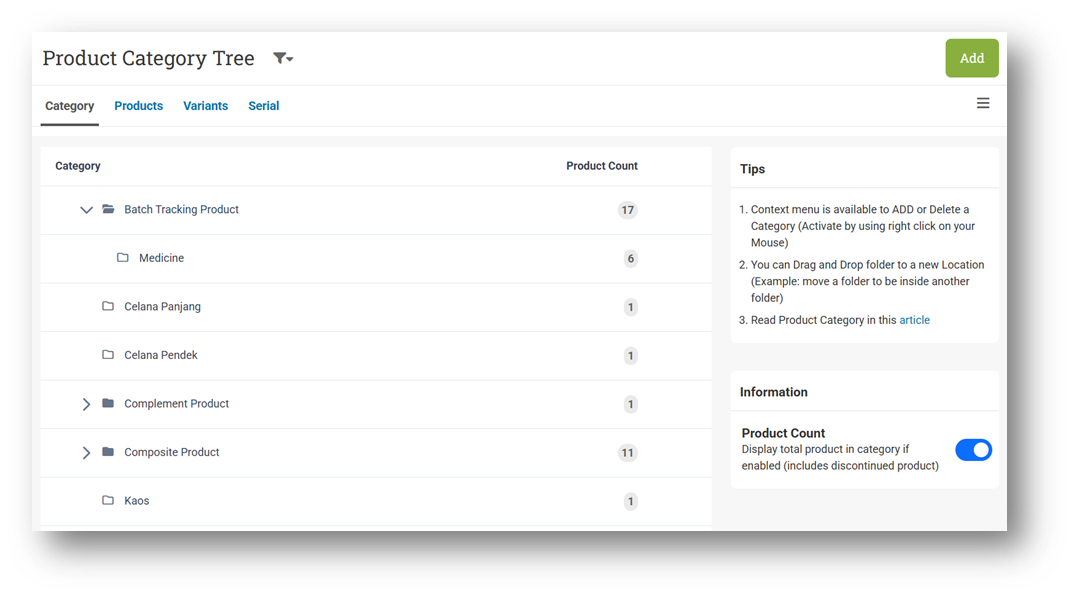
[Product - Category] Implement Tree Table Component
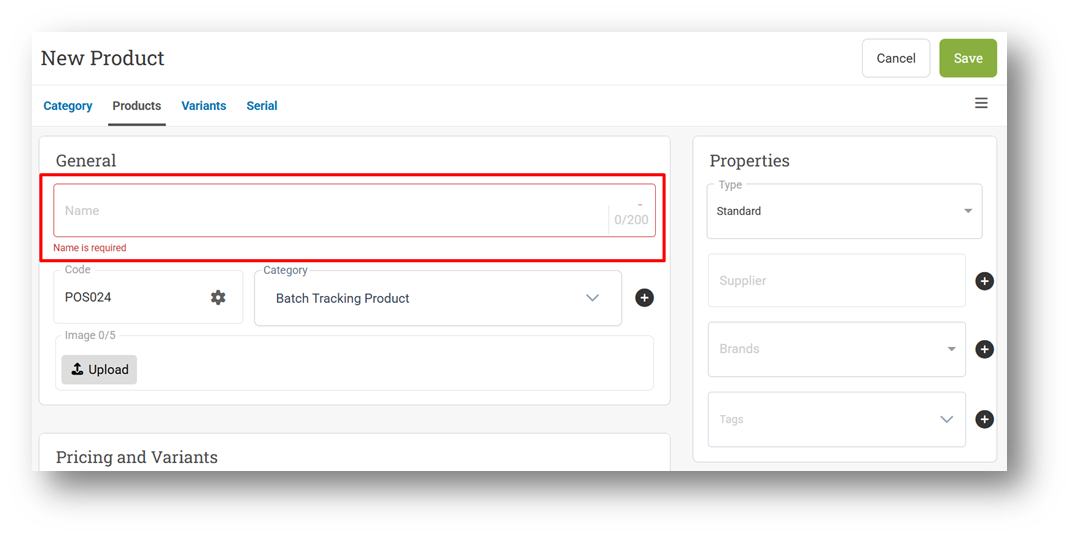
[Products] Highlight Product Name Mandatory Indicator When Creating Product
[Products - Variant]
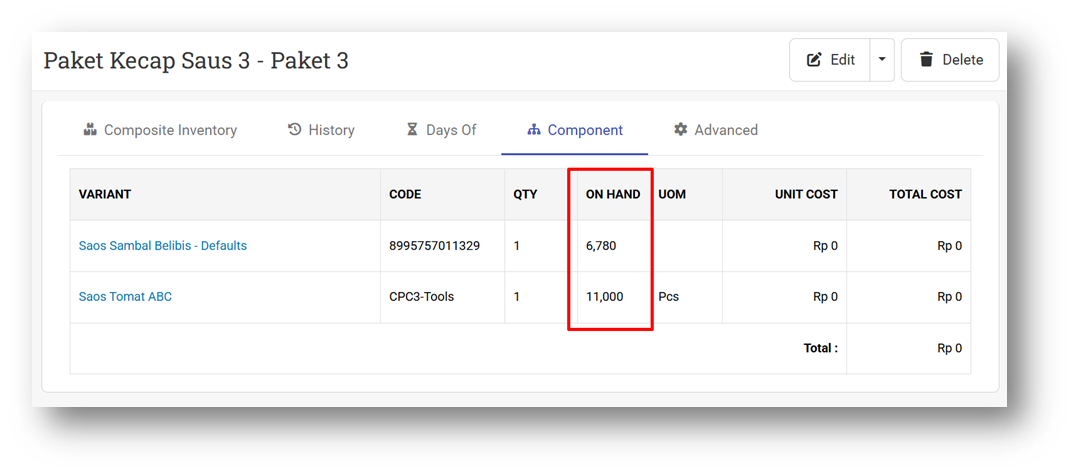
Implement Fraction Digit Configuration for Component On Hand in Variant Info
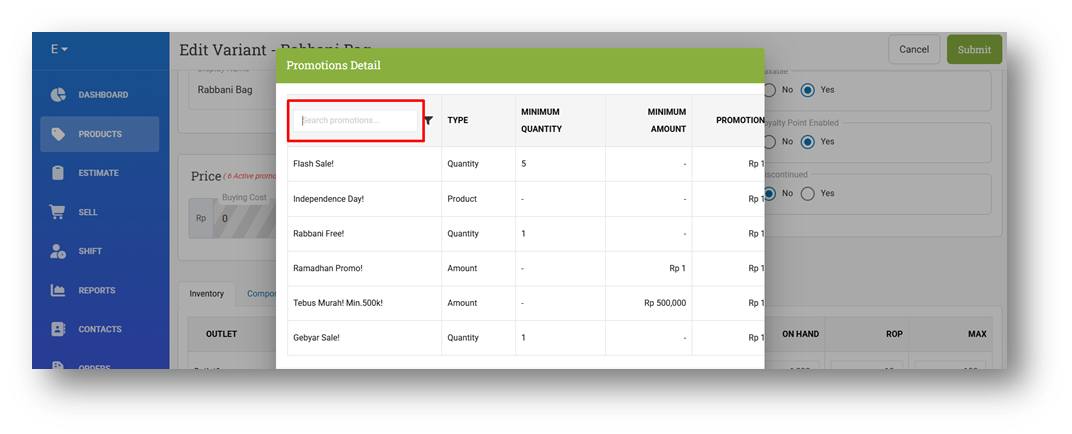
Provide Search Promotion on Promotion Dialog in Variant Form
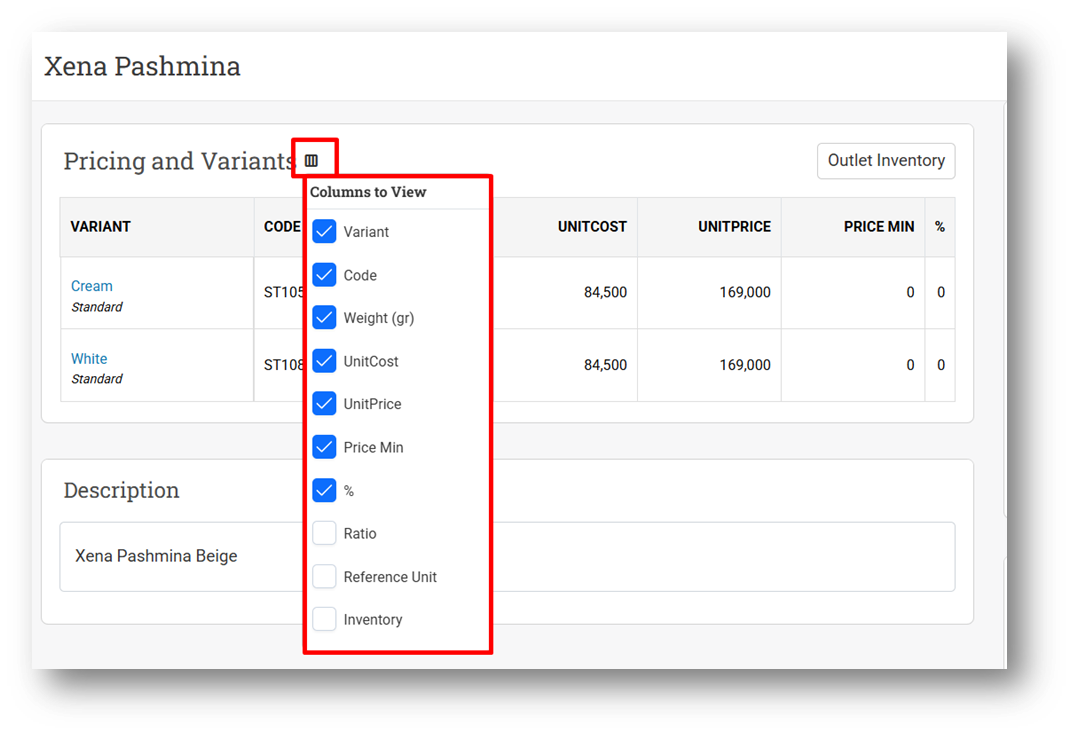
[Products] Provide Column Toggle for Variant List in Product Info & Form
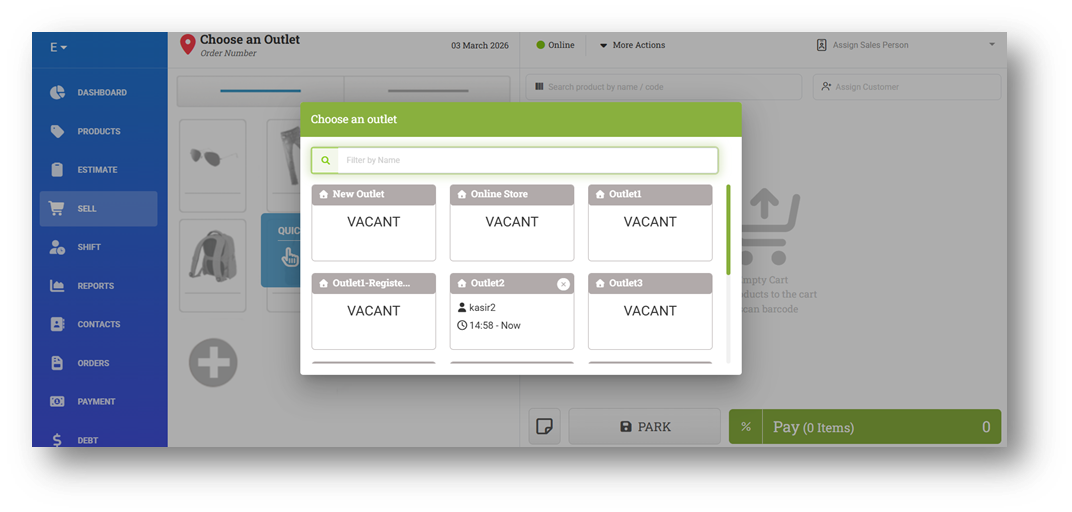
[Sell] Prevent Users from Closing Outlet Dialog Before Selecting Any Data
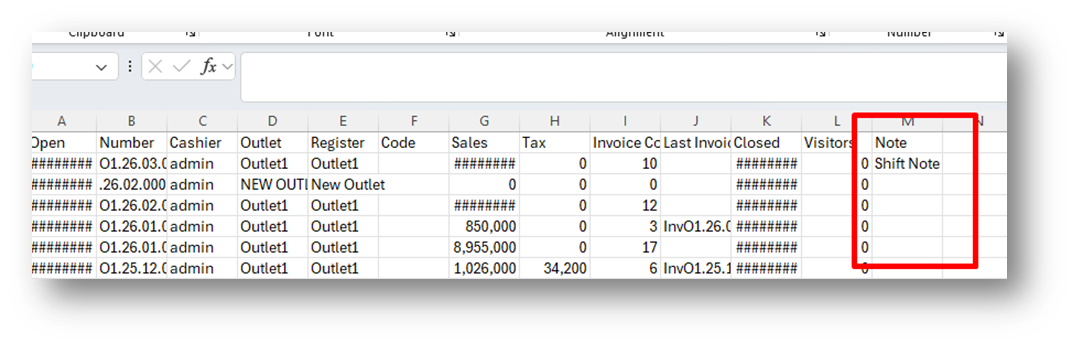
[Shift - Previous Shift] Provide Closure Note Column in CSV Default Export
[Orders] Redesign Void Bill and Sales Order UX
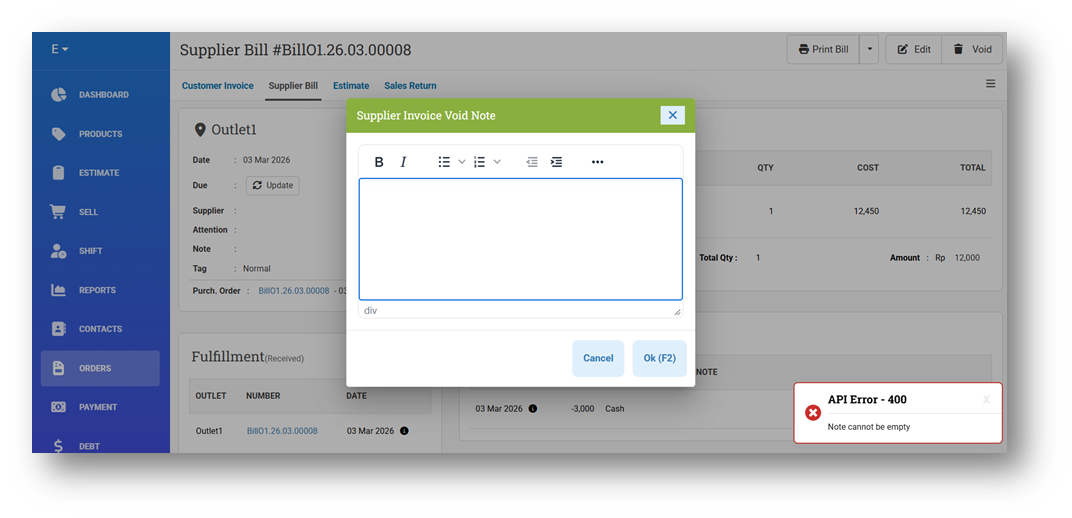
We’ve redesigned the Void Bill & Void Sales Order experience to align with the terminology and workflow used in Void Invoice. When performing a Void action—whether from the Bill Detail / Sales Order Detail page or the Bill List / Sales Order List—users are now required to provide a Void Reason / Note before proceeding. This ensures better traceability and accountability for canceled bills.
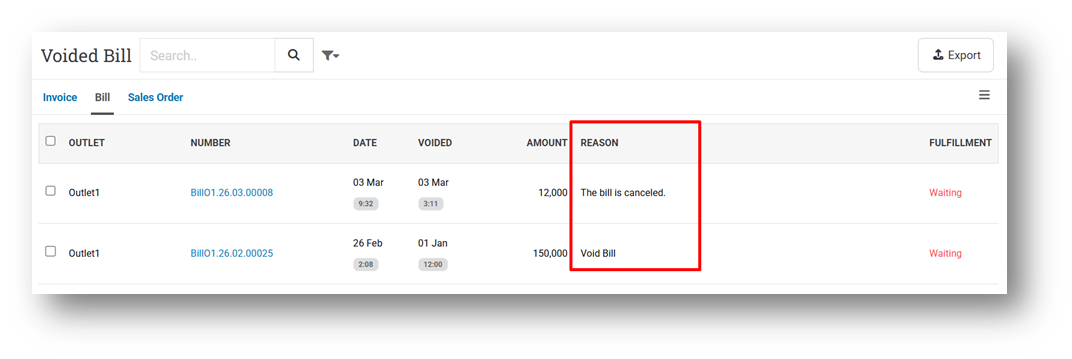
The Void note entered during this process will not overwrite any transaction notes, preserving original transaction information. Additionally, the Void Reason is now displayed in the Bill Recycle Bin and Sales Order Recycle Bin, making it easier to review and audit voided bills.
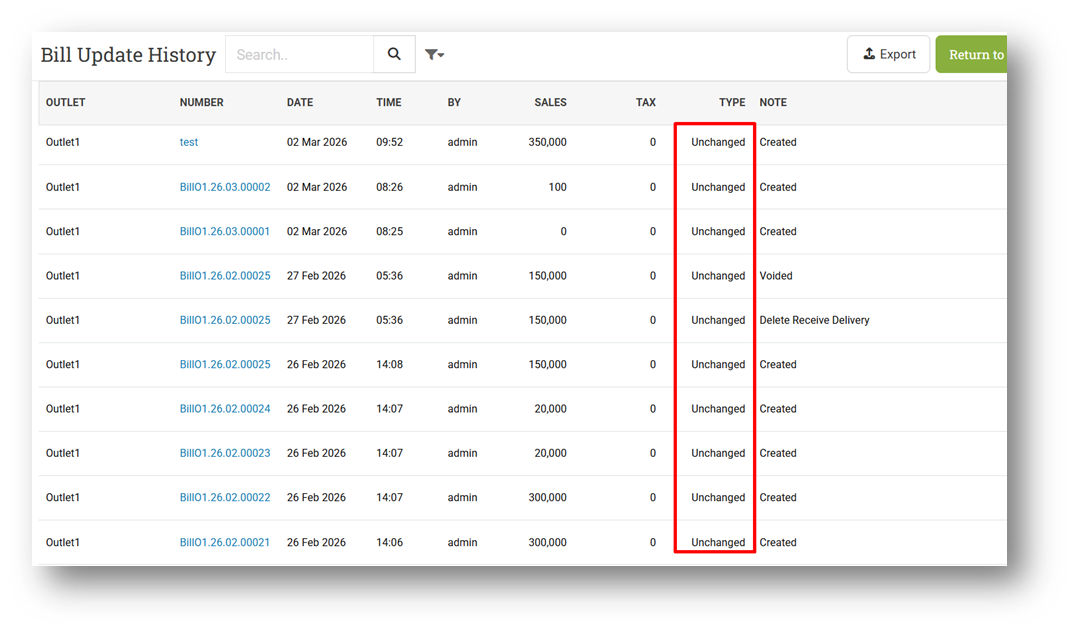
[Orders - Bill Update History] Bill Update History Enhancement
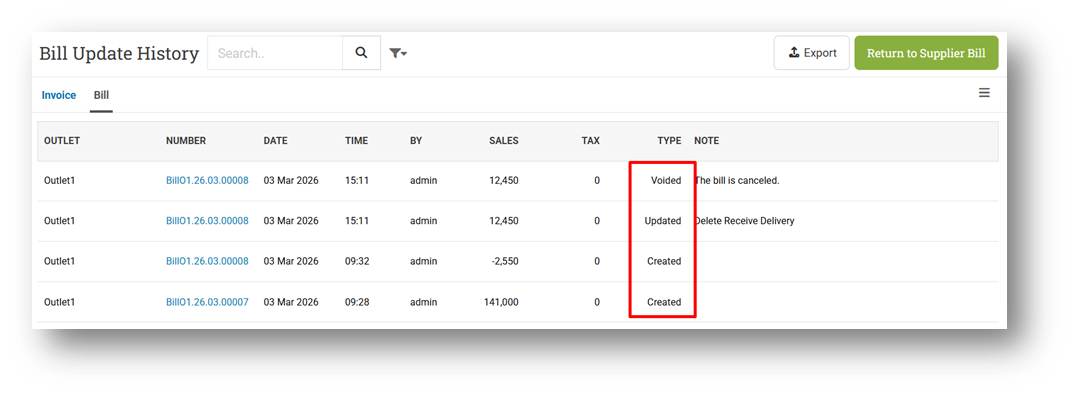
We’ve enhanced the Bill Update History page by adding a new Action Type column to provide clearer visibility into changes made to Supplier Bills. Each transaction update is now categorized into one of four types: Created, Updated, Voided, and Restored, using the same terminology as the Invoice Update History for consistency across modules.
For historical records created before this feature was released, the Action Type column will display “Unchanged” to indicate that those entries were logged before this enhancement.
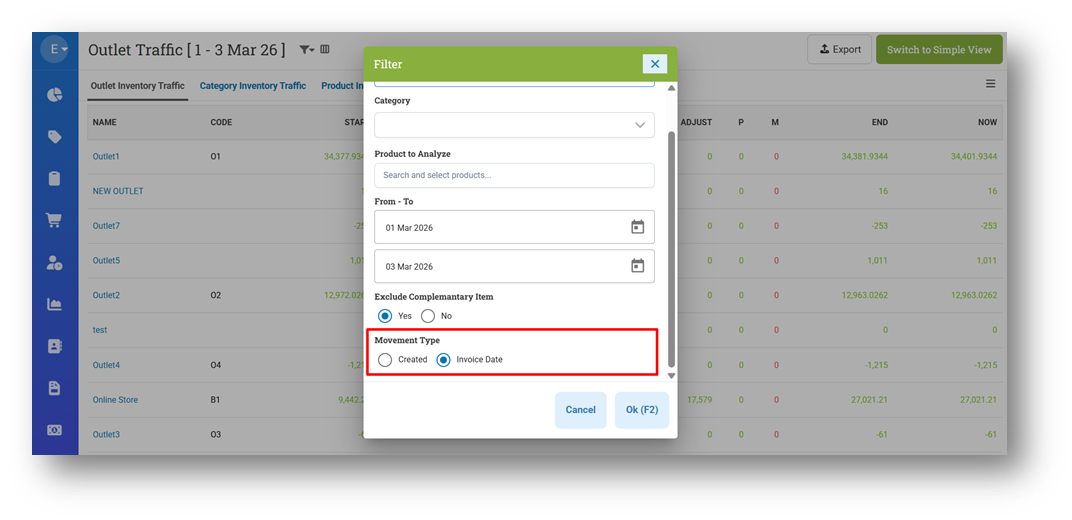
[Inventory - Outlet Traffic] Provide Movement Type Filter
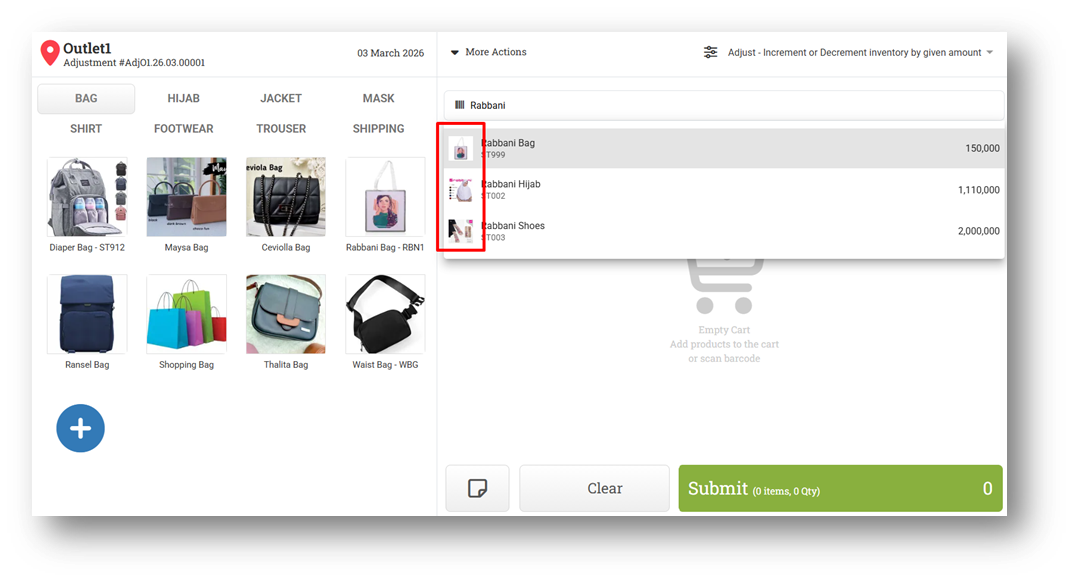
[Adjustment] Display Product Image in Search Product Bar
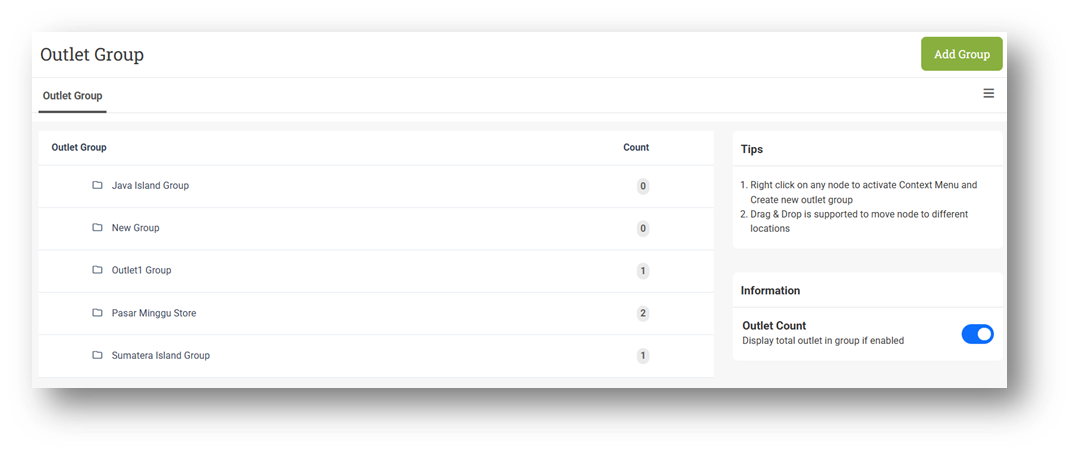
[Outlet - Group] Implement Tree Table Component
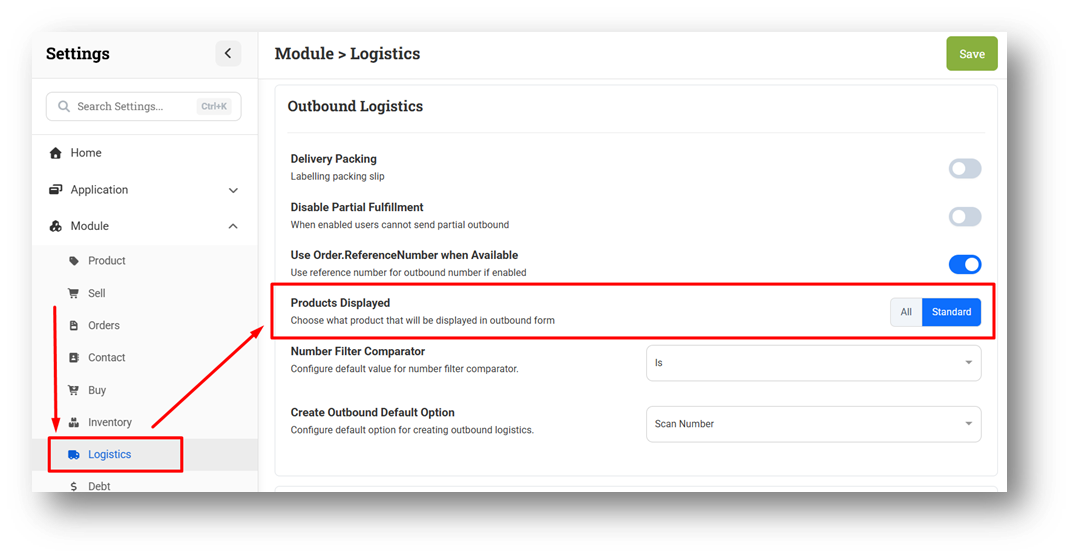
[Settings - Module (Logistics)] Improve Send Non-Inventory Settings Behaviour
We’ve enhanced consistency across the system by standardizing the former “Send Non-Inventory” setting. In all Logistics modules—both Outbound and Inbound—the setting has been renamed to “Product Displayed.” It now provides two options: All and Standard.
All → Displays all product types, including Non-Inventory items (commonly used for services, shipping fees, etc.).
Standard → Displays only Standard (inventory) products, excluding Non-Inventory items from selection when creating Outbound or Inbound transactions.
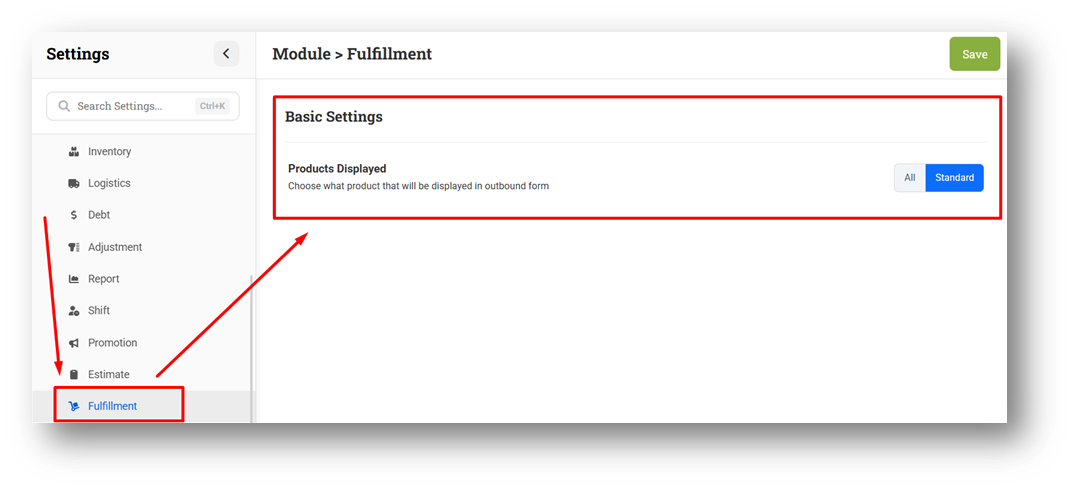
Additionally, this “Product Displayed” setting is now also available in the Fulfillment module to ensure consistent product filtering behavior across all shipment-related workflows.
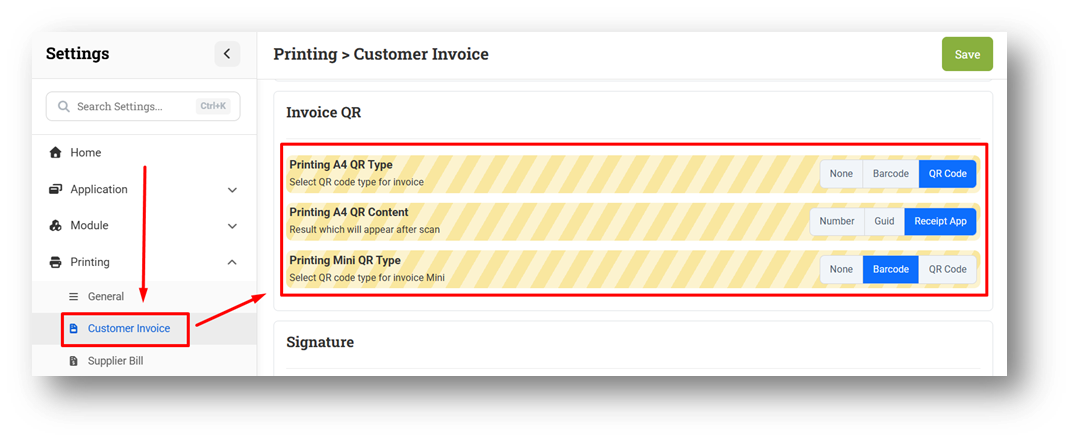
[Settings - Printing (Invoice)] Improve Invoice QR Printing Configuration
We’ve improved the QR Code and Barcode behavior in Invoice Printing. Both QR Code and Barcode can now be displayed in A4 and Mini formats. Barcode content remains limited to Invoice Number only, while QR Code can be generated from Invoice Number, Invoice ID, or an E-Receipt link.
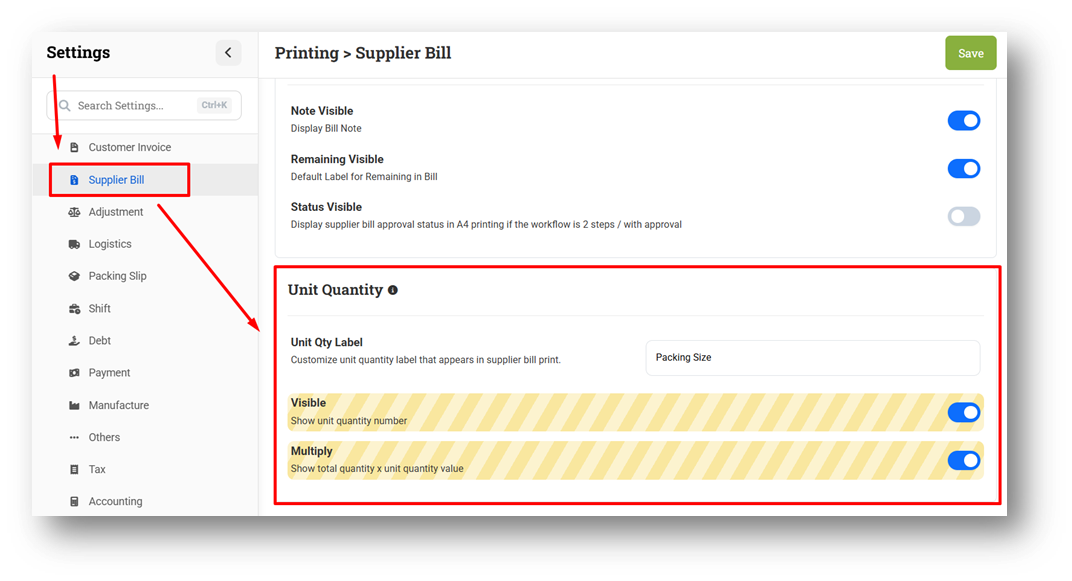
[Settings - Printing (Bill)] Unit Quantity Label Settings
We’ve introduced a new printing setting for Supplier Bill called “Unit Quantity Label.” This configuration works similarly to the setting available in Customer Invoice printing, allowing users to display the Content value of each item on the printed document.
For example, if a product Tissue contains 250 Sheets, the “250 Sheets” information can now be shown on the Supplier Bill printout by enabling this setting. This enhancement ensures clearer quantity representation and maintains consistency between Supplier Bill and Customer Invoice print formats.
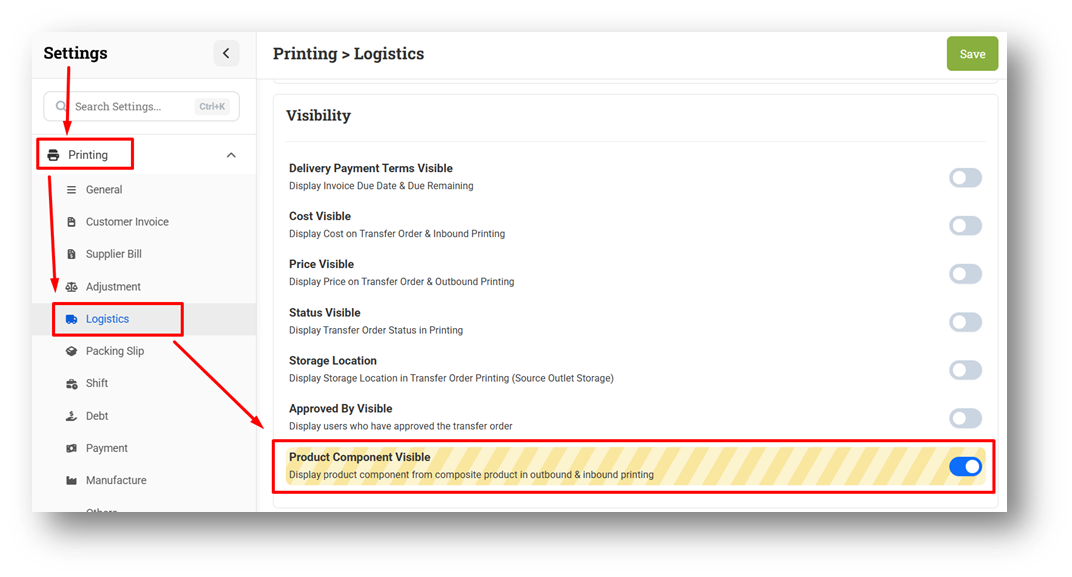
[Settings - Printing (Logistics)] Product Component Visibility Configuration
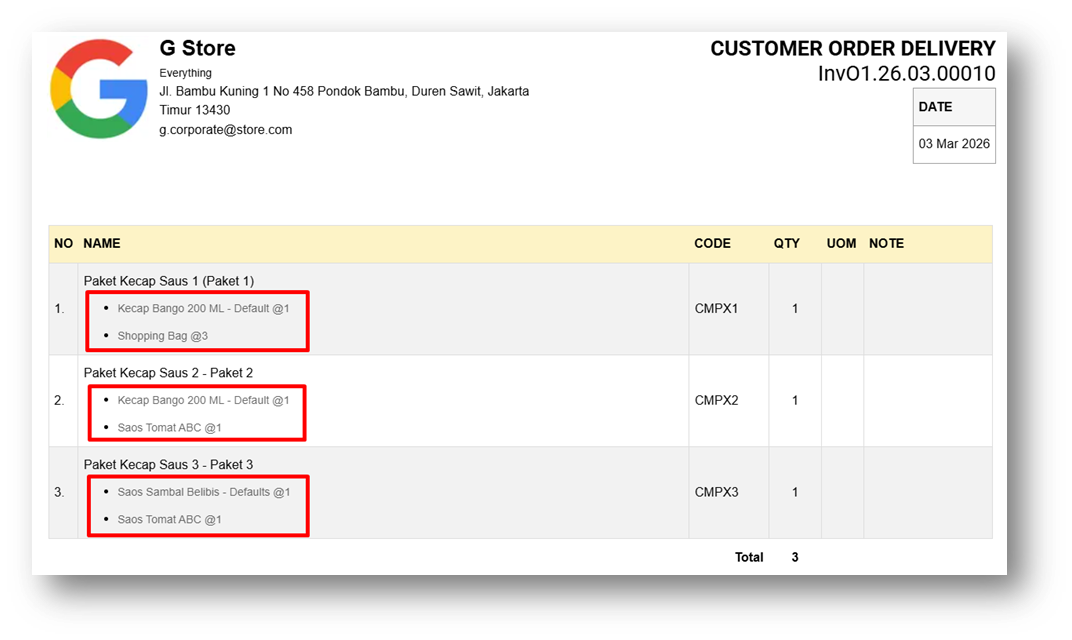
We’ve introduced a new printing setting, “Product Component Visibility,” for Outbound and Inbound documents. When transactions include composite products, users can now choose whether to display the individual component details in the printed document.
Enabling this setting causes the printed Outbound or Inbound document to show the breakdown of each composite product’s components. If disabled, only the parent product will be displayed, as before. This enhancement provides greater flexibility in document presentation, especially for warehouse or logistics processes that require detailed item breakdowns.
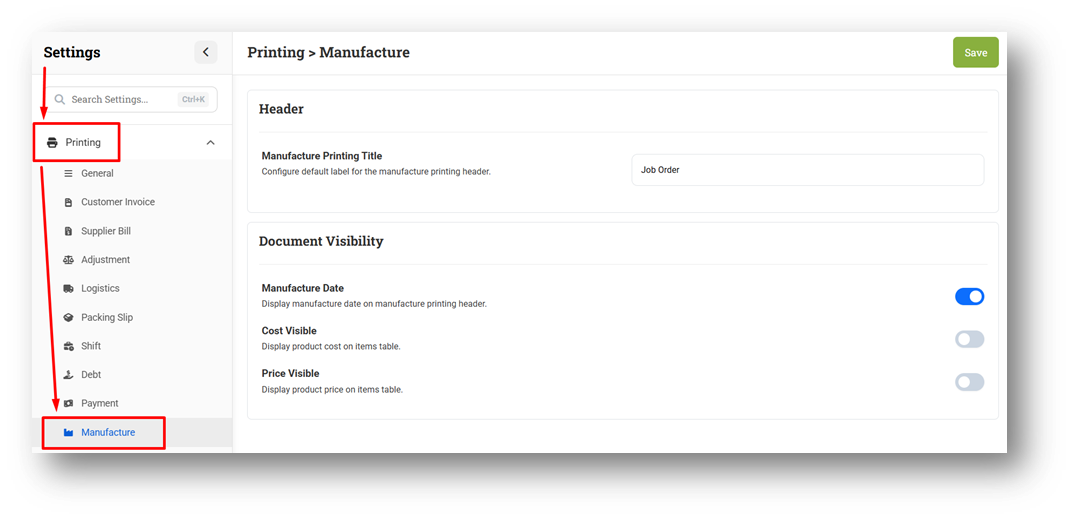
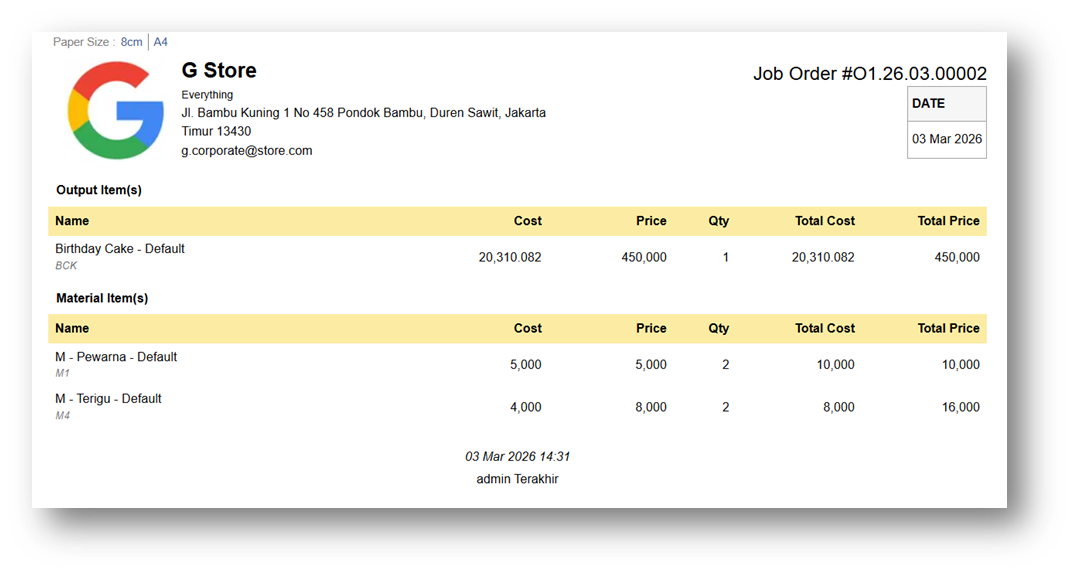
[Settings - Printing (Manufacture)] New Manufacture Printing Configuration
We’ve added a new settings section under Printing specifically for the Manufacture module. This enhancement allows users to control which information appears on printed manufacture documents, providing greater flexibility based on operational needs.
Users can now choose to show or hide specific fields such as Date, Cost, and Price, and these settings apply to both A4 and Mini Printing formats. This ensures consistent formatting across print types while allowing businesses to customize the level of detail included in their manufacture printouts.
This feature was developed based on customer request #11771
[Sharing Component]
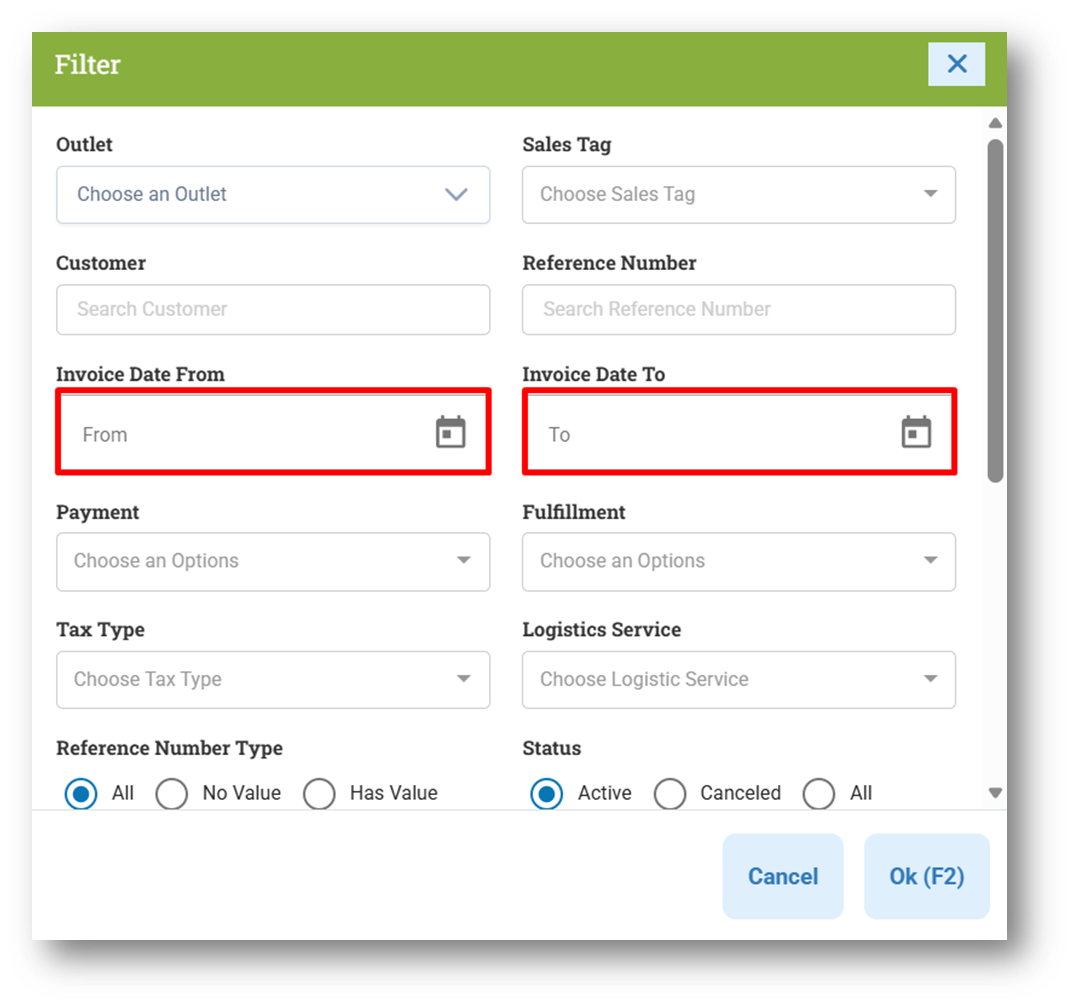
Prevent Users from Typing Date on Filter
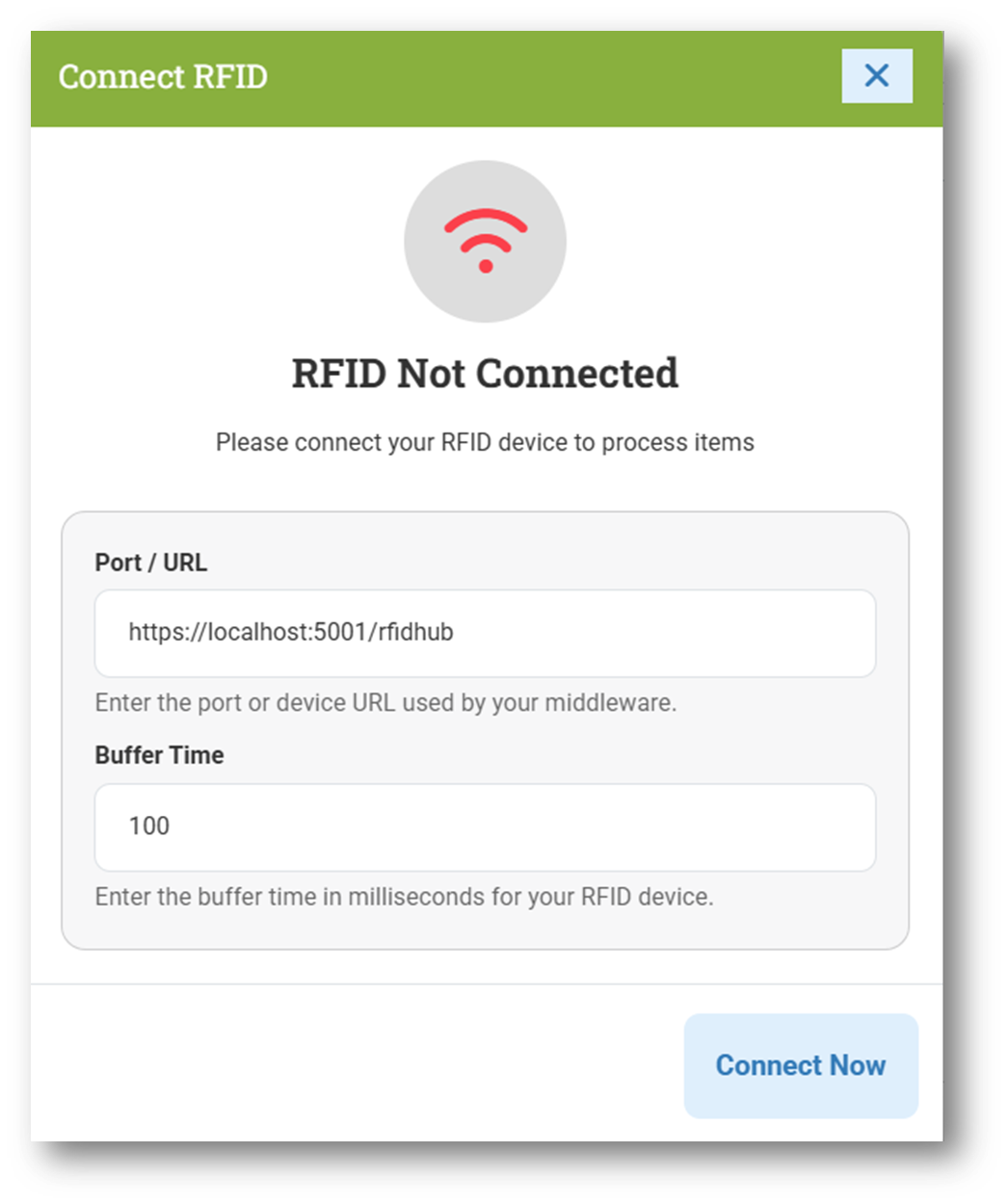
New RFID Connect Dialog for Buy & Transfer Order Form
Bug Fixes:
[Products - Variants] Fix Close Promotion Detail in Variant Form Does Not Work
[Orders - Purchase Order] Fix: Users Cannot Void from Purchase Order Info
[Orders - Bill Update History] Fix: Bill Update History Incorrectly Logged as Unchanged
[Manufacture] Fix Incorrect Cost Comparing Logic Between Input & Output
[Settings - Module (Products)] Restrict Users from Typing Empty Space in Variant Code Separator
[Settings - Module (Buy)
Fix Users Cannot Save Buy Settings
Fix Missing Purchase Order Numbering Configuration
Deprecated:
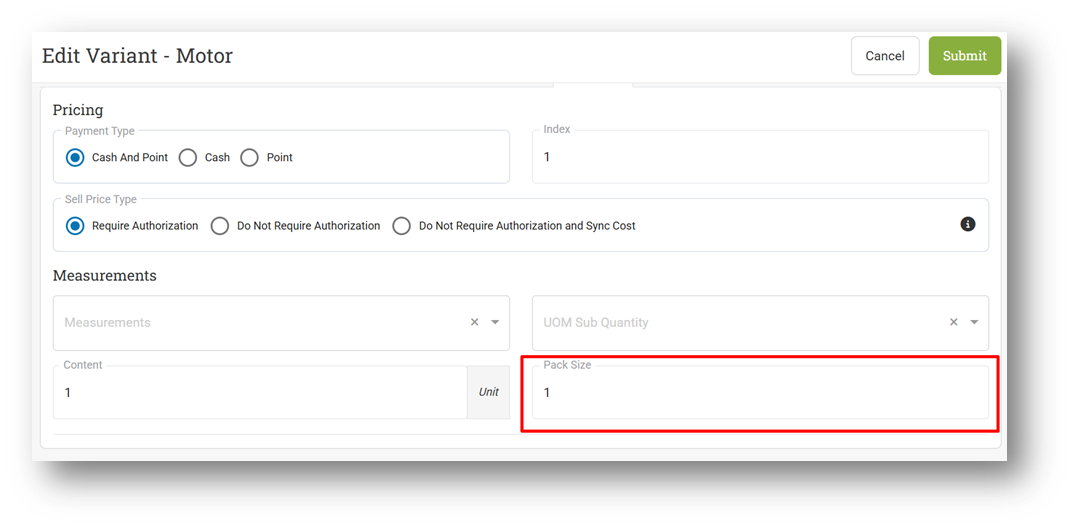
[Products - Variant] Remove Pack Size Field from Variant Update
The “Pack Size” field at the Variant level has been removed due to overlapping functionality with the “Content” field. If you previously used Pack Size, you can now enter the same information in the Content field, which is already displayed and utilized in multiple areas, including printing. Pack Size has been deprecated because it was only available in the Variant Form and not used elsewhere in the system.
Patch 26.9.1 [6 Mar]:
[Products] Enable Standalone Creation for Base Unit and Multi-Unit Product Types from the Products Form
[Orders - Bill] Fix Users Cannot Delete Bill from List
[Orders - Purchase Order] Fix: Validation Error Prompting for Void Notes Despite Existing Input
[Orders - Bill History] Provide Export Feature
Patch 26.9.2 [11 Mar]:
[Sell] Remove Void Note Restriction from Voiding Parked Orders
[Reports - Products] Fix Incorrect Next & Show All Button Logic
[Orders - Customer Invoice] Fix Users Cannot Delete Invoice from List
[Orders - Sales Return] Fix Users Cannot Delete Return Invoice from List
[Orders - Sales Order] Fix Voided Note Using Hardcoded String Instead of User Input
[Logistics - Transfer Order History] Remove HTML Tag from Note Column in CSV Export
[Sharing Component] Fix Users Cannot Search by Variant Code Above 30 Characters
Patch 26.9.3 [14 Mar]:
[Products - Products]
Tidy Up Variant Table Position & Column Toggle
[Products - Variants]
Fix Update Base Unit Inventory from Variant Form Does Not Trigger Adjustment
Hyperlink Multi-Unit Product Comparison to Variant Info
[Reports - Products] Fix Incorrect Row Count
[Reports - Brand Chart] Fix Pie Chart Display Blank Data
[Payment - Detail] Improve Date Column Format in CSV Export
Stay tuned for more updates, and don't hesitate to reach out if you have any questions or need support!