- DATE:
- AUTHOR:
- Ezzan
WebApp Version 26.36 Changelog
This update includes new features, essential performance improvements, and usability enhancements to ensure your daily operations run smoothly. We've also addressed several bug fixes to enhance stability and reliability. DealPOS continues to evolve as a reliable POS Software designed to support retail business operations with better performance and usability. Thank you for your continued trust and feedback, which help us deliver the best possible service.
New Feature:
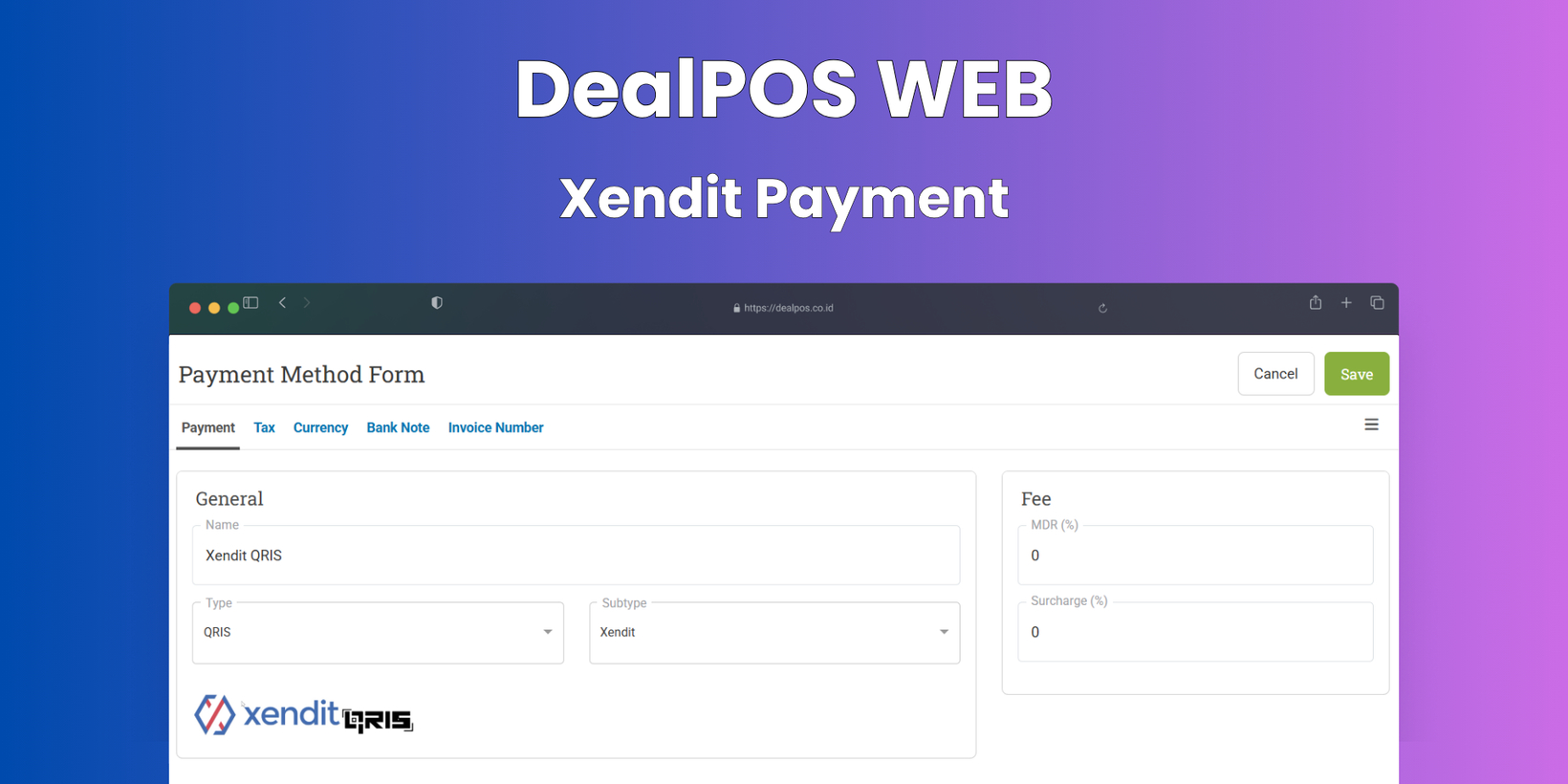
[Payment] Xendit Payment Gateway Support
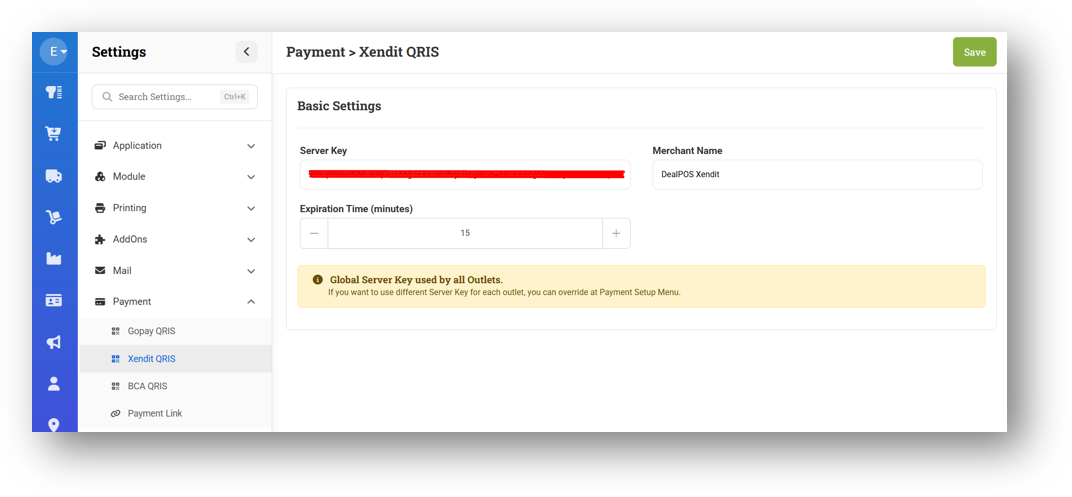
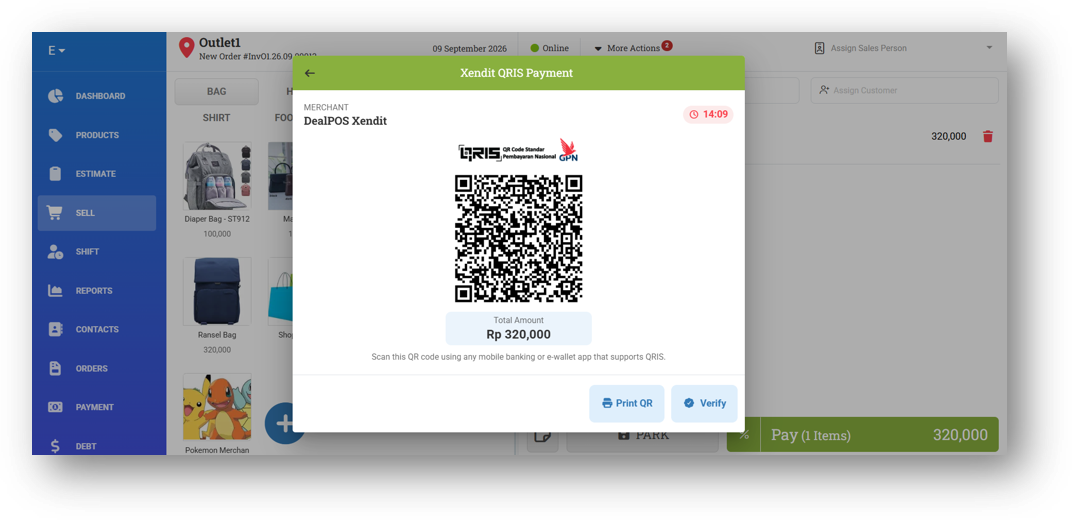
We've added support for a new payment gateway: Xendit, expanding your options beyond the existing GoPay Midtrans. From the Settings menu, you can now configure your Xendit QRIS Server Key, along with an Expiration Time setting. By default, QRIS codes will expire after 15 minutes, but you can adjust this based on your preference—so when you generate a QRIS in the Sell menu, a timer will show exactly how long it remains active.
With Xendit, you can generate QRIS codes directly from the Sell menu and create payment links from the Orders menu—just like you're already familiar with. The experience mirrors the existing GoPay Midtrans flow, so there's no learning curve for your cashiers.
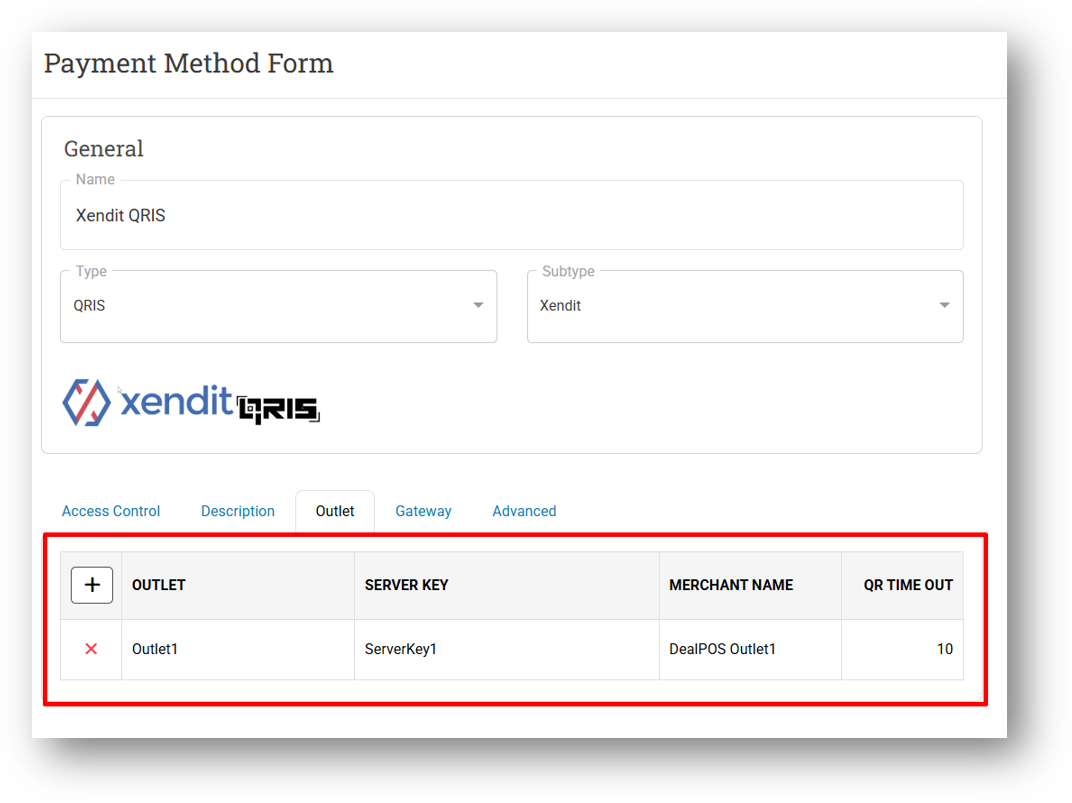
For businesses operating multiple outlets, we've made configuration flexible. You can set a global Xendit QRIS Server Key from the Settings menu, but if you have more than one outlet, each outlet can override this with its own Server Key from the Payment Menu on Outlet Section—giving you full control over where payments are routed.
[Sell] Coin Machine Integration & Cash Drawer Details
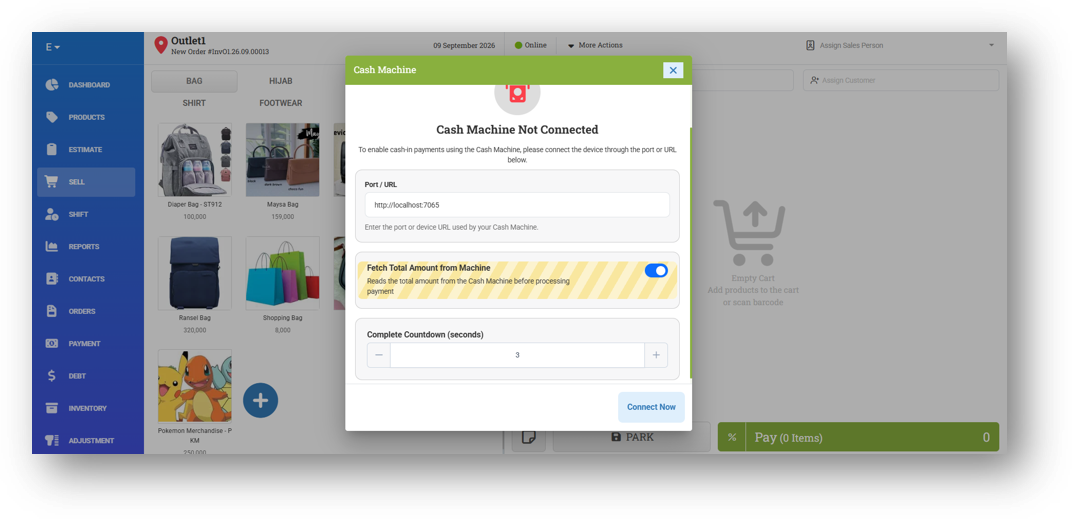
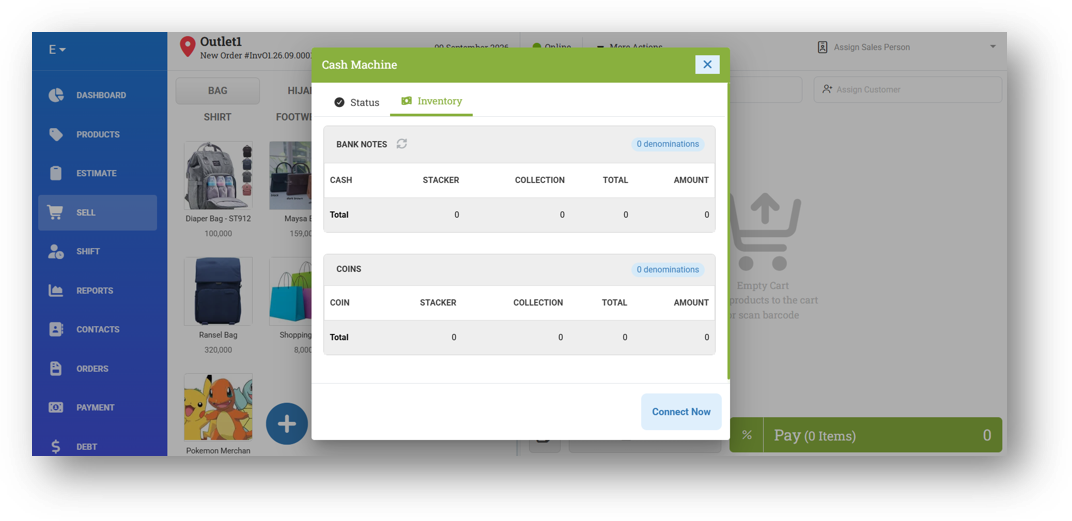
We've expanded our cash machine integration to now support Coin Machine as well, giving you more flexibility in managing both notes and coins. This addition currently covers machine types Innovative and Glory, and we've also delivered various improvements and broader scenario support for both types to ensure smoother operations.
We've also introduced a new view that displays the total amount from your connected machines right on the main integration page. Need to drill deeper? Simply open the Inventory tab to view a detailed breakdown of denominations—such as how many $10 notes, how many $20 notes, or how many 5-cent coins are currently in each machine. This makes reconciliation easier and gives you full visibility into your physical cash.
[Logistics - Transfer Order] Low Stock Items Analyzer
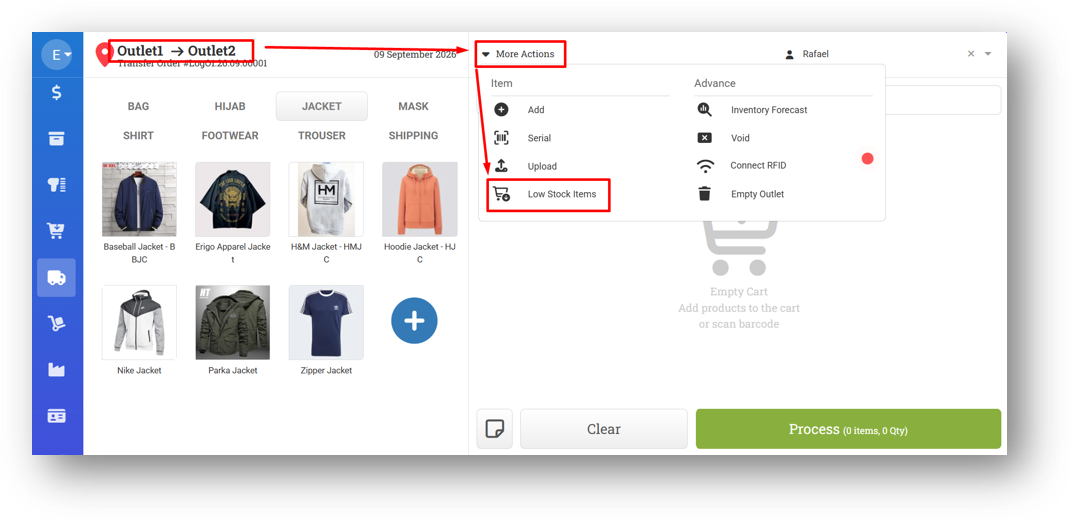
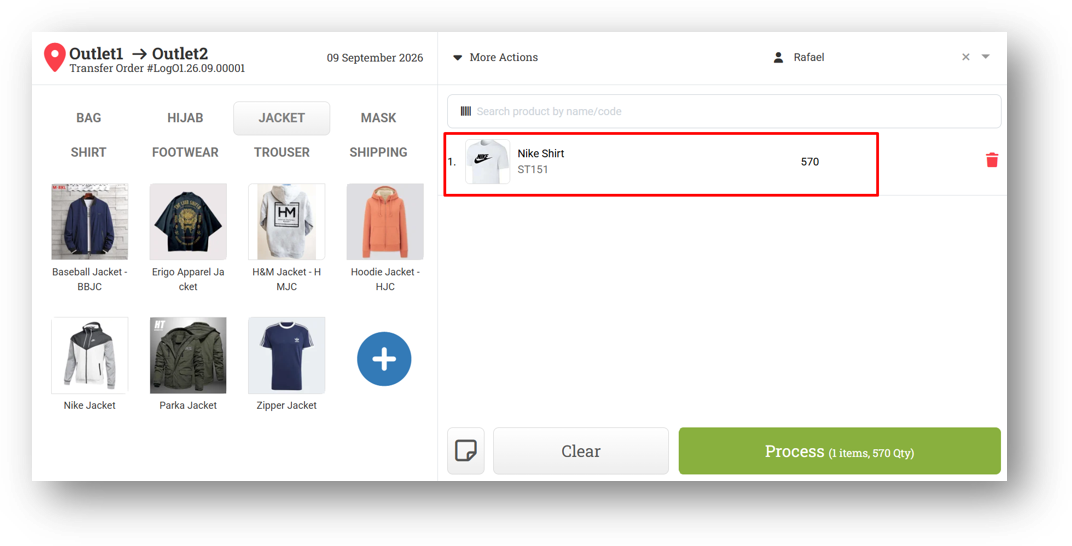
We've introduced a new tool in the Transfer Order module called Low Stock Item Analyzer to help you make smarter stock transfer decisions. Simply click the Low Stock Item button and the system will analyze your destination outlet's stock levels, then recommend which products need to be sent and how many. This takes the guesswork out of replenishing your outlets.
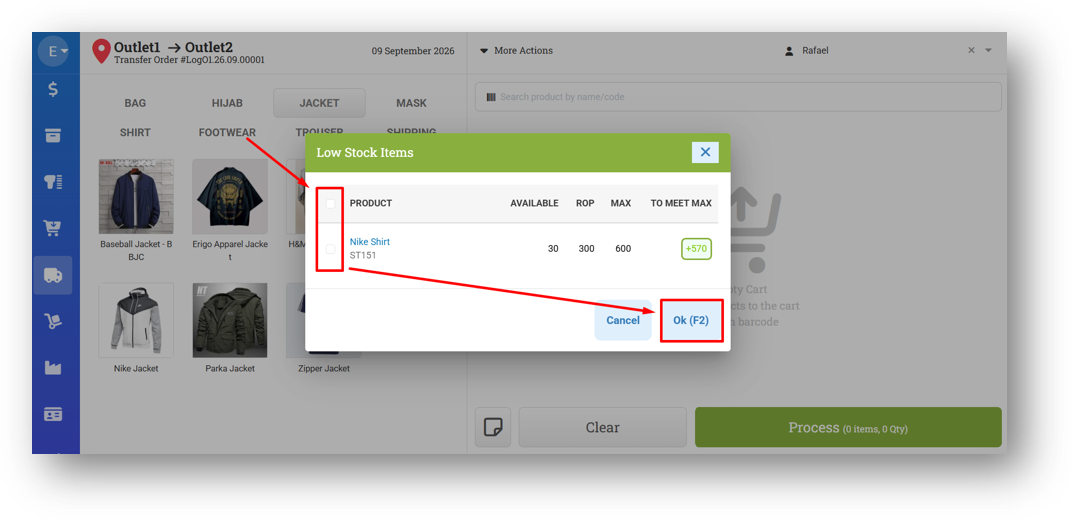
The recommendations are calculated based on the ROP (Reorder Point) and MAX stock values you've set for each product at the destination outlet. For example, if Outlet2 currently has 30 units, with ROP set to 300 and MAX set to 600, the system will recommend sending +570 units. If only ROP is set (300) without MAX, the recommendation adjusts to +270 units. If ROP isn't set at all, no recommendation will be made—so we highly recommend filling in both ROP and MAX for all products across all outlets to get the most accurate results.
Once the list appears, you can select which items you want to transfer—either individually or by checking all at once. Click OK and the selected items will be added directly to your Transfer Order cart, complete with the recommended quantities. It's a faster, smarter way to keep your outlets properly stocked.
Minor Improvements:
[Sell]
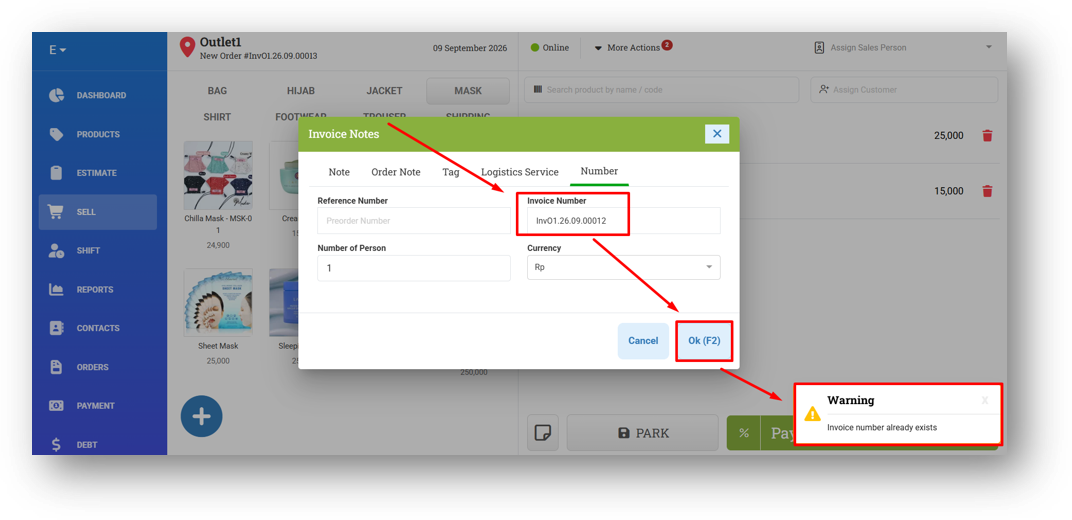
Validate Duplicate Invoice Number on Submit
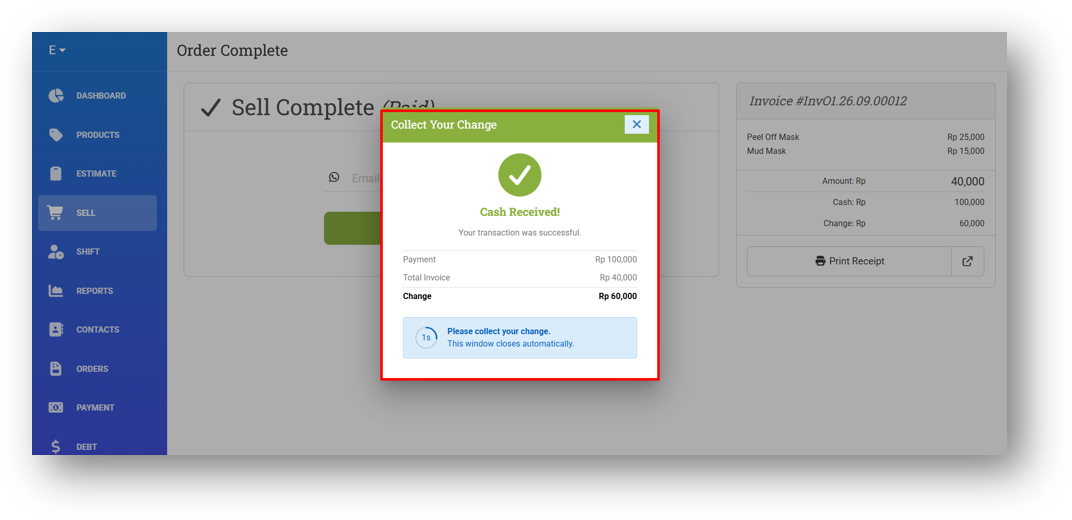
Provide Cash Change Information on Sell Complete
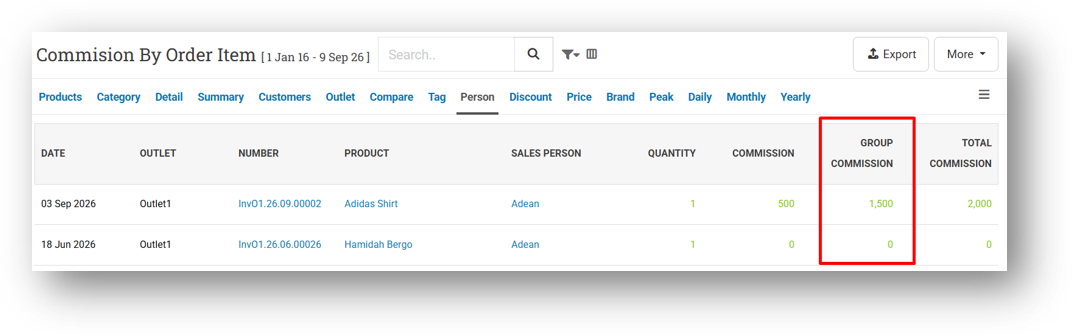
[Reports - Person (Order Item)] Display Group Commission Column
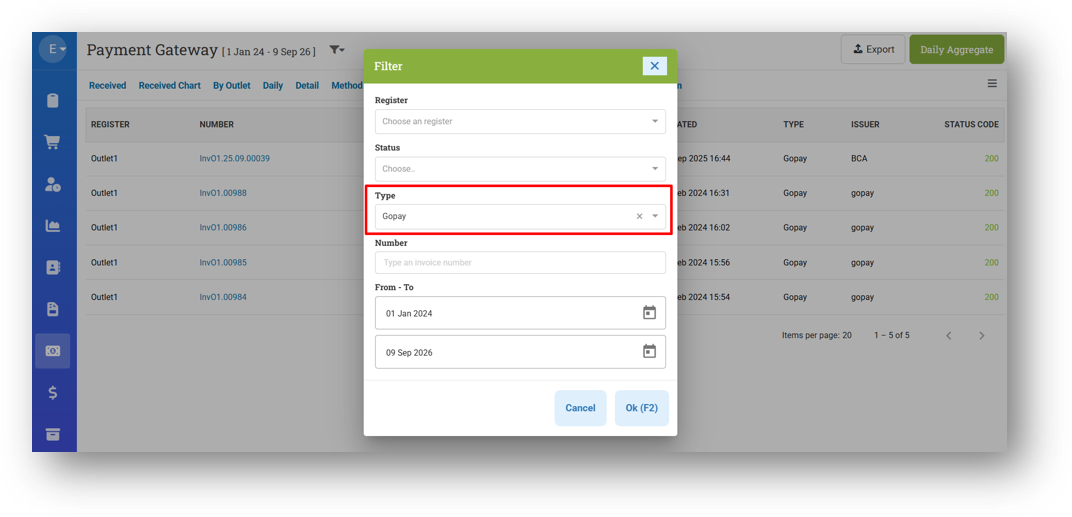
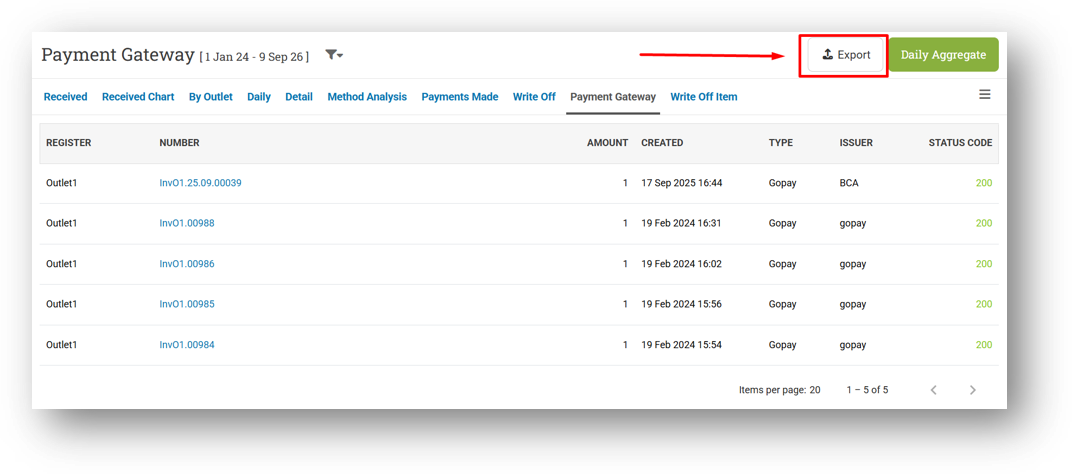
[Payment - Payment Gateway]
Provide Filter Type
Provide Export Feature
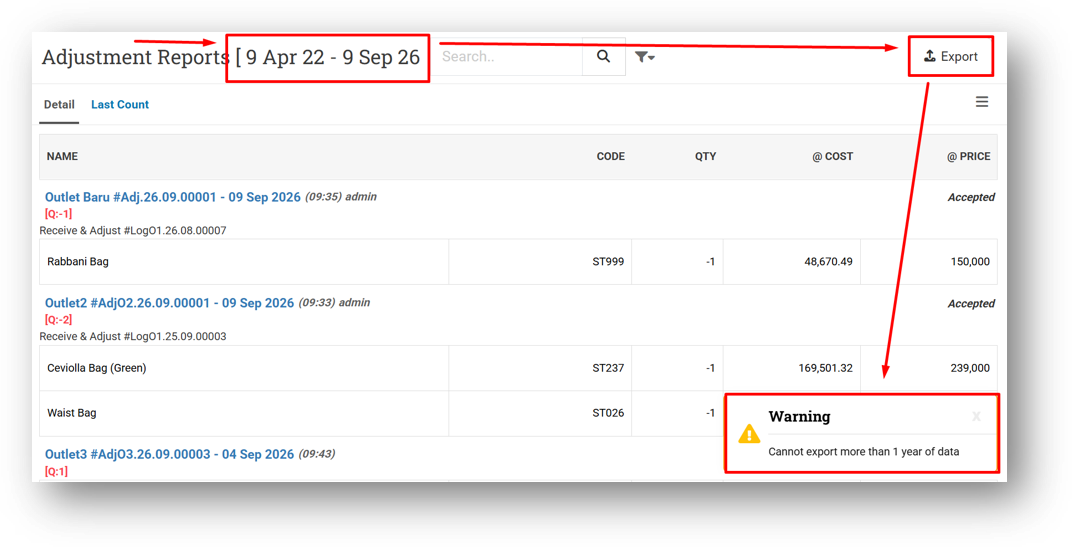
[Adjustment - Reports Details]
Optimize Export File Size
Prevent Exporting Data More Than 1 Year Range
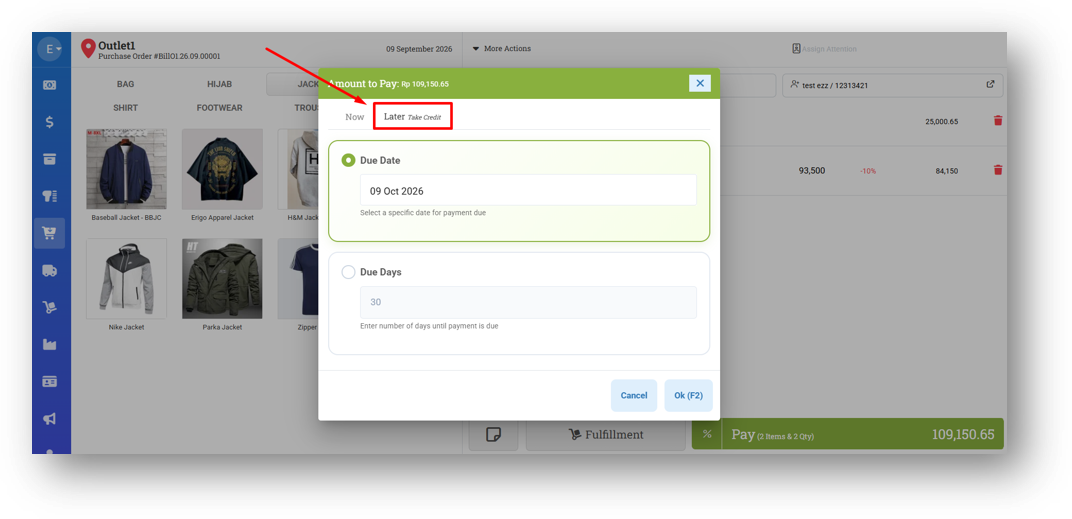
[Buy] Redesign Buy Payment Later UI/UX
This improvement was developed based on customer request #19297
[Logistics - Transfer Order]
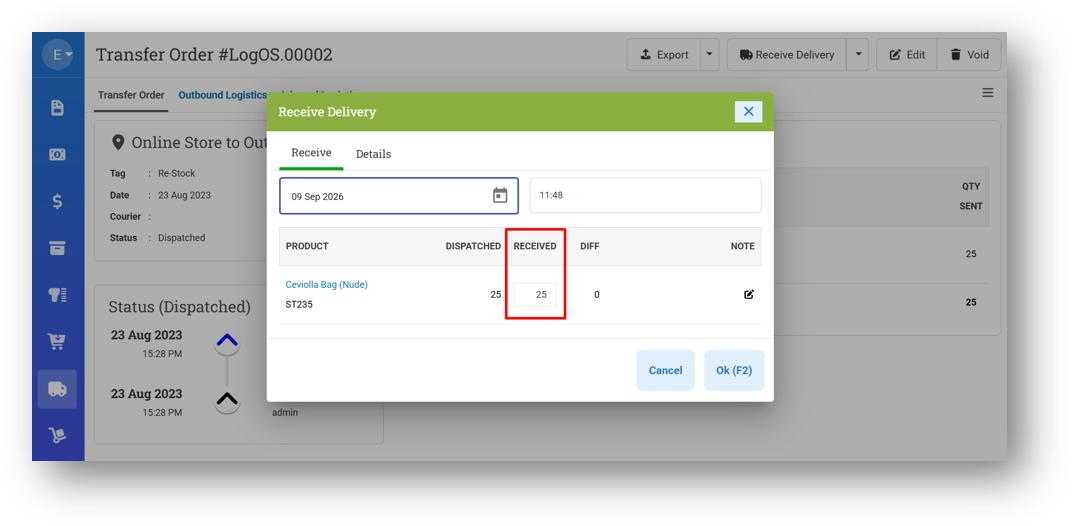
Redesign Receive Transfer Order UI/UX
We've simplified the receiving process in Transfer Orders by bringing key features directly into the standard Receive flow. Previously, if you received fewer items than sent—due to damage, loss, or other issues—you'd need to use the separate Receive and Adjust feature to input the actual received quantities and add notes per item. Now, you can do all of that right from the standard Receive form. You can now input the received quantity for each item and add item notes directly, without switching features. The old Receive and Adjust option is still available for now, but it will be permanently removed in a future release, so we encourage you to start using this simplified flow as soon as possible.
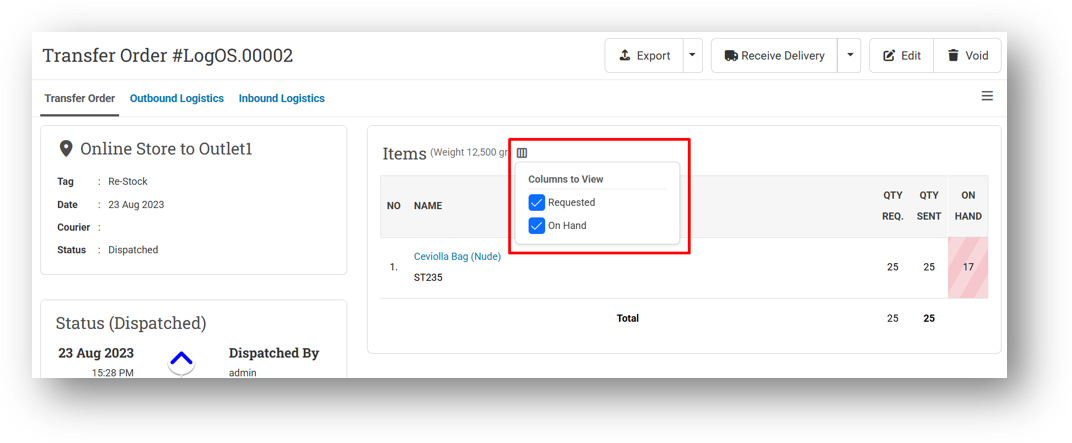
Provide Column Toggle for Items Table in Info Page
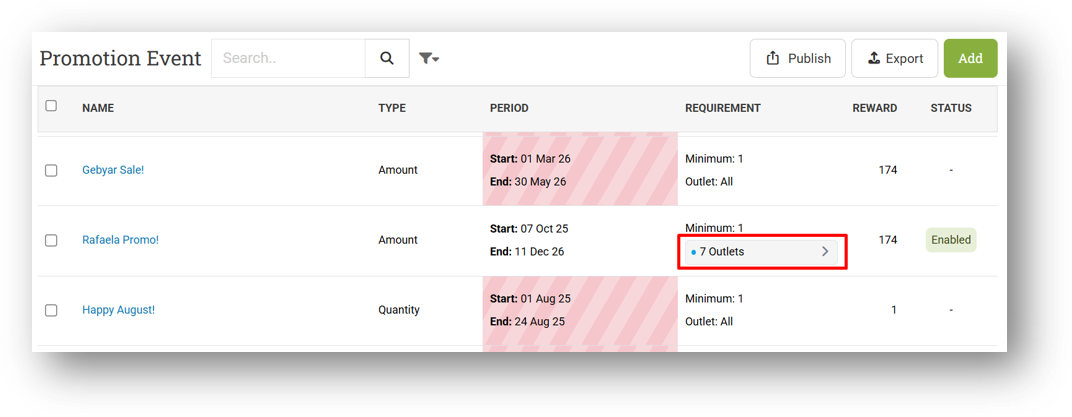
[Promotion - Event] Provide Expandable UI to Display Outlet Requirement in List & Info Pages
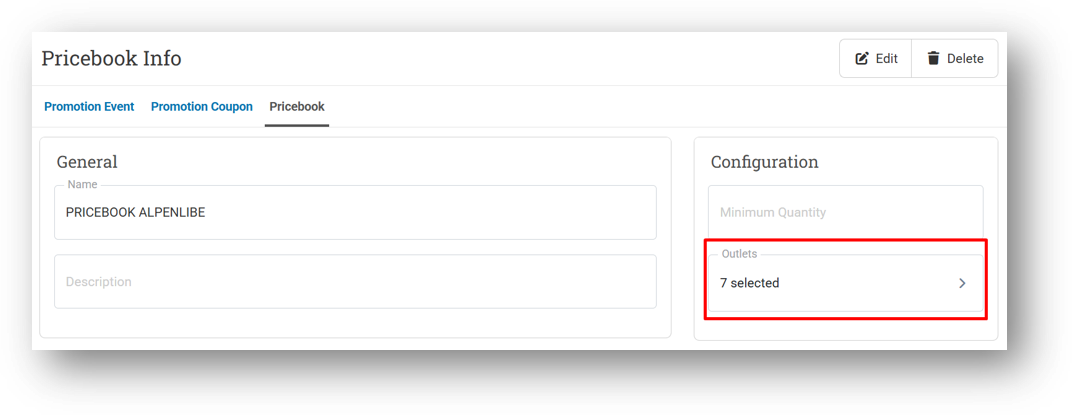
[Promotion - Pricebook] Provide Expandable UI to Display Outlet Requirement in List & Info Pages
Bug Fixing:
[Product] Restrict Selling Price Field on Product Form with Product Price Role
[Estimate] Restrict Price & Disc Information with Product Price Role
[Sell]
Fix Return Transaction Payment Saving Full Amount Instead of Partial Payment
Fix Invoice Number in Note Disappear When Opening Modal & Clicking Cancel Button
Patch 26.36.1 [14 Sep]:
[Sell] Fix Note Field Not Resetting After Cancelling Invoice Number Change Warning
[Orders] Fix Outbound Not Deleted On Invoice Void After Updating Fulfillment via Invoice Edit
[Adjustment] Auto-Focus Cursor on Product Search Bar on New Adjustment
[Buy] Auto-Focus Cursor on Product Search Bar When Opening New Purchase
[Logistics - Transfer Order]
Fix Null Image When Adding Items from Low Stock Feature
Fix Adjustment Not Created When Receive with Difference
Provide Product Image on Dispatch & Receive Modal
Patch 26.36.2 [15 Sep]:
[Sell]
Fix Concurrent Lock When Retrieving & Pay Order
Fix Users Cannot Pay with Gopay QRIS Payment Method
[Payment - Payment Made Detail] Remove HTML Tag from CSV Export
Patch 26.36.3 [16 Sep]:
[Sell]
Exclude Authorized Users from Reprint Allowed In Restriction
Restrict Print After Sell (CTRL+P) with Global Reprint Role
[Orders - Bill] Provide Variant Name & Product Code in Bill Info CSV Export
[Payment - Payment Made (Detail)] Fix Missing Payment Record from Same Bill Number
[Adjustment] Fix Missing Movement Stock After Resuming & Approving Adjustment
Patch 26.36.4 [19 Sep]:
[Logistics - Transfer Order] Restrict Receive & Adjust with Adjustment Create Role
Overall, this update further establishes the platform as a reliable Inventory Application for your retail businesses. Stay tuned for more updates, and don't hesitate to reach out if you have any questions or need support!